iOS SDK
The FleetML iOS SDK (a Swift package for iOS 15 and later, with its manifest at
the repository root and its code in ios/FleetMLSDK) puts an iPhone or iPad
app under FleetML's control: it registers with an enrollment key, receives
model assignments over gRPC, downloads and verifies them, validates each model
with Core ML before using it, keeps the last-known-good version, works offline,
and reports telemetry. It does not run your models: your app does, with Core ML
or anything else. It mirrors the Android SDK feature for
feature.
This guide starts with the sample app on the simulator and then on your iPhone (Get started), then follows the path to your own app and to production: add the package, configure the app from build settings, run it on your iPhone with a model published and deployed to it, then the same on the simulator, and what production needs. The sample app and the tests come last.
Get started
The sample app on the simulator and on your iPhone (either first, or only one of them), against a server on your Mac: copy and paste, nothing to choose. Each step says what you should see; if you see something else, stop there and look it up in Troubleshooting. Use one terminal and keep it open until the end.
Before you start, once: Xcode with an iOS simulator (Xcode, Settings, Components), Homebrew and Docker Desktop.
-
Check the tools. This installs XcodeGen, which generates the sample app's Xcode project:
brew install -q xcodegen
docker compose version && jq --version && xcodebuild -version && xcodegen --version
You should see
XcodeandVersion:. -
Start FleetML. The first start takes a few minutes, to download and build the images:
[ -f deploy/docker-compose.prod.yml ] || { [ -d fleetml ] || git clone https://github.com/fleetml/fleetml.git; cd fleetml; }
[ -f ~/.fleetml.env ] || (umask 077; printf "export JWT_SECRET='%s' SIGNING_MASTER_KEY='%s' FLEETML_ADMIN_KEY='%s' FLEETML_REST_PORT=%s FLEETML_GRPC_PORT=%s FLEETML_DASHBOARD_PORT=%s FLEETML_S3_PUBLIC_PORT=%s S3_PUBLIC_ENDPOINT=localhost:%s\n" "$(openssl rand -base64 32)" "$(openssl rand -base64 32)" "$(openssl rand -hex 32)" "${FLEETML_REST_PORT:-18080}" "${FLEETML_GRPC_PORT:-19090}" "${FLEETML_DASHBOARD_PORT:-80}" "${FLEETML_S3_PUBLIC_PORT:-19100}" "${FLEETML_S3_PUBLIC_PORT:-19100}" > ~/.fleetml.env)
source ~/.fleetml.env
docker compose -f deploy/docker-compose.prod.yml up -d --build && for i in $(seq 90); do curl -sf localhost:${FLEETML_REST_PORT:-18080}/readyz && break; [ $i = 90 ] && echo "Not ready after 3 minutes: see Troubleshooting in docs/ADVANCED.md"; sleep 2; done || echo "Start failed: see Troubleshooting in docs/ADVANCED.md"; echo
curl -sf -H "Authorization: Bearer $FLEETML_ADMIN_KEY" localhost:${FLEETML_REST_PORT:-18080}/api/v1/projects && echo && echo "Dashboard: http://localhost:${FLEETML_DASHBOARD_PORT:-80}  (log in with FLEETML_ADMIN_KEY from ~/.fleetml.env)"
You should see
{"db":"connected","nats":"connected","s3":"connected","status":"ok","version":"<version>"}. The block saved the server's secrets in~/.fleetml.env: keep that file. -
Get the CLI, checked against the release's checksums:
OS=$(uname -s | tr '[:upper:]' '[:lower:]'); ARCH=$(uname -m | sed -e 's/x86_64/amd64/' -e 's/aarch64/arm64/')
curl -fsSLO "https://github.com/fleetml/fleetml/releases/latest/download/fleetml-$OS-$ARCH.tar.gz"
curl -fsSLO https://github.com/fleetml/fleetml/releases/latest/download/SHA256SUMS
grep " fleetml-$OS-$ARCH.tar.gz\$" SHA256SUMS | shasum -a 256 -c
mkdir -p ~/.local/bin && tar -xzf "fleetml-$OS-$ARCH.tar.gz" -C ~/.local/bin fleetml
rm "fleetml-$OS-$ARCH.tar.gz" SHA256SUMS
export PATH="$HOME/.local/bin:$PATH"
fleetml version
You should see
fleetml-<os>-<arch>.tar.gz: OKand✓ fleetml v<version>. -
Publish the sample model and deploy it, the Core ML build of it. The project gets the time in its name, so running the block again makes a new one:
export FLEETML_SERVER=http://localhost:${FLEETML_REST_PORT:-18080} FLEETML_API_KEY=$FLEETML_ADMIN_KEY
P=$(fleetml project create --name "first-ios-$(date +%H%M%S)" -o json | jq -r .id)
fleetml push models/iris/iris_v1.mlmodel --project $P --model iris --version 1.0.0 --framework COREML --quantization FP32 --metadata '{"fleetml_requirements":{"min_ram_mb":64,"min_score":0}}'
V=$(fleetml ver list --model "$(fleetml model list --project $P -o json | jq -r '.[0].id')" -o json | jq -r '.[0].id')
fleetml deploy start "$(fleetml deploy create --project $P --version $V -o json | jq -r .id)"
export FLEETML_ENROLLMENT_KEY=$(fleetml enrollment-key create --project $P --name first-device -o json | jq -r .key)
You should see
✓ Pushed models/iris/iris_v1.mlmodel → iris v1.0.0 (FP32)and✓ Deployment start → COMPLETE. -
Put the simulator on it. This builds the sample app, starts an iPhone simulator, installs the app and launches it with the enrollment key in its environment, then waits until the SDK logs the model active (up to 15 minutes the first time, while Xcode builds without printing anything):
(cd ios/SampleApp && xcodegen generate --quiet)
SIM=$(xcrun simctl list devices available -j | jq -r '[.devices[][] | select(.name | startswith("iPhone"))][0].udid')
xcodebuild -quiet -project ios/SampleApp/FleetMLSample.xcodeproj -scheme FleetMLSample -destination "platform=iOS Simulator,id=$SIM" -derivedDataPath ios/SampleApp/build build < /dev/null
xcrun simctl boot $SIM 2>/dev/null; open -a Simulator
xcrun simctl install $SIM ios/SampleApp/build/Build/Products/Debug-iphonesimulator/FleetMLSample.app
SIMCTL_CHILD_FLEETML_PORT=${FLEETML_GRPC_PORT:-19090} SIMCTL_CHILD_FLEETML_ENROLLMENT_KEY=$FLEETML_ENROLLMENT_KEY xcrun simctl launch --terminate-running-process $SIM com.fleetml.sample
for i in $(seq 60); do xcrun simctl spawn $SIM log show --last 2m --info --style compact --predicate 'subsystem == "com.fleetml.sdk"' 2>/dev/null | grep 'is active' && break; [ $i = 60 ] && echo "Not active after 2 minutes: see Troubleshooting"; sleep 2; done
You should see
[com.fleetml.sdk:FleetML] Model iris 1.0.0 is active, and the app's screen Active model: iris 1.0.0. Tap Classify sample flower to run it. -
Put your iPhone on it, in three blocks: pick the phone, build and install the app, then start it. This step needs steps 2 to 4 in this terminal; step 5 (the simulator) is not needed, so you can do this one first.
Once per phone, before the blocks: - on the phone, Developer Mode on: Settings, Privacy & Security, Developer Mode, then restart it and tap Turn On; - connect it to the Mac with a cable, unlock it and tap Trust on "Trust This Computer?"; - while you test, keep it unlocked and on the charger: Settings, Display & Brightness, Auto-Lock, Never (a locked phone refuses the start with
Locked); - in Xcode, your Apple ID (Xcode, Settings, Accounts, +) and an Apple Development certificate (Manage Certificates, +).The phone and the Mac must be on the same Wi-Fi (not a guest network that keeps devices apart). The cable can stay or go.
6a. Pick the phone. This lists the iPhones paired with this Mac and takes the one, if there is only one:
T=$(mktemp); xcrun devicectl list devices --quiet --json-output "$T" > /dev/null 2>&1
jq -r '.result.devices[] | select(.hardwareProperties.platform == "iOS" and .connectionProperties.pairingState == "paired") | "\(.identifier)  \(.hardwareProperties.marketingName // .hardwareProperties.productType)"' "$T"
PHONE=${PHONE:-$(jq -r '[.result.devices[] | select(.hardwareProperties.platform == "iOS" and .connectionProperties.pairingState == "paired")] | if length == 1 then .[0].identifier else empty end' "$T")}; rm -f "$T"
echo "PHONE=${PHONE:-<more than one iPhone: copy yours from the list above and run export PHONE=<its identifier>>}"
You should see one line per iPhone, its identifier and its model (such as
iPhone 11 Pro Max, or its model code such asiPhone12,5before the Mac has connected to the phone in this session), thenPHONE=and that identifier. With more than one iPhone, runexport PHONE=with yours, then go on.6b. Build and install the app on it. This points the server's downloads at the Mac's network address, which the phone reaches, and builds the sample app for that phone (Xcode adds the phone to your signing profile the first time):
. ~/.fleetml.env && sed -i.bak "s/S3_PUBLIC_ENDPOINT=[^ ]*/S3_PUBLIC_ENDPOINT=$(ipconfig getifaddr en0):${FLEETML_S3_PUBLIC_PORT:-19100}/" ~/.fleetml.env && rm ~/.fleetml.env.bak
source ~/.fleetml.env && docker compose -f deploy/docker-compose.prod.yml up -d
TEAM=$(security find-certificate -c "Apple Development" -p | openssl x509 -noout -subject | grep -o 'OU=[A-Z0-9]*' | cut -d= -f2)
(cd ios/SampleApp && xcodegen generate --quiet)
xcodebuild -quiet -project ios/SampleApp/FleetMLSample.xcodeproj -scheme FleetMLSample -destination "id=$PHONE" -derivedDataPath ios/SampleApp/build -allowProvisioningUpdates DEVELOPMENT_TEAM=$TEAM build < /dev/null &&
  xcrun devicectl device install app --device $PHONE ios/SampleApp/build/Build/Products/Debug-iphoneos/FleetMLSample.app
You should see the stack's containers (
Container <stack>-server-1 Startedthe first time,Runningafter), then (after a few minutes the first time)App installed:andbundleID: com.fleetml.sample. A lineIDERunDestination: Supported platforms for the buildables in the current scheme is emptyis harmless.Trust the app's developer, once per phone: if no other app from this Mac is on the phone, on the phone open Settings, General, VPN & Device Management, the Apple Development entry with your Apple ID, Trust, and Trust again (the phone needs internet for it). iOS keeps that trust as long as any app from this Mac stays installed, so later installs and rebuilds need no tap; if you are not sure, go on: 6c says so if it is needed.
6c. Start it and wait for the phone to check in:
T=$(mktemp); xcrun devicectl device info details --device $PHONE --quiet --json-output "$T" > /dev/null 2>&1; MODEL=$(jq -r .result.hardwareProperties.productType "$T"); rm -f "$T"
SINCE=$(date -u +%Y-%m-%dT%H:%M:%S)
if OUT=$(DEVICECTL_CHILD_FLEETML_HOST=$(ipconfig getifaddr en0) DEVICECTL_CHILD_FLEETML_PORT=${FLEETML_GRPC_PORT:-19090} DEVICECTL_CHILD_FLEETML_ENROLLMENT_KEY=$FLEETML_ENROLLMENT_KEY xcrun devicectl device process launch --device $PHONE --terminate-existing com.fleetml.sample 2>&1); then
  echo "$OUT" | grep Launched
  for i in $(seq 60); do fleetml device list --project $P -o json | jq -e --arg m "$MODEL" --arg t "$SINCE" 'any(.[]; .chipset == $m and .last_seen_at >= $t)' > /dev/null && break; [ $i = 60 ] && echo "The iPhone has not checked in after 3 minutes: see the list below this step"; sleep 3; done
elif echo "$OUT" | grep -q -i -E 'explicitly trusted|invalid code signature'; then
  echo "Trust the developer on the phone (once): Settings, General, VPN & Device Management, Apple Development, Trust; then run this block again"
elif echo "$OUT" | grep -q -i -E 'expired|no longer valid'; then
  echo "The app's 7-day signing profile has expired: run 6b again, then this block"
else
  echo "$OUT" | grep -E 'ERROR|Locked|reason' | head -3
fi
fleetml device list --project $P
You should see
Launched application with com.fleetml.sample bundle identifierand in the list a row whose Chipset is your phone's model identifier (such asiPhone12,5; the simulator's row, if you did step 5, has the simulator's). Running the block again later gives the same: it waits for the phone to check in, not for a new device. The first start asks on the phone to find devices on your local network: tap Allow (once for this app). The phone's screen then shows Active model: iris 1.0.0; tap Classify sample flower to run it. The check-in above passes for any project the key belongs to, but the screen shows iris only when a deployment of that project reaches the sample: one with no target, like step 4's, or one targeting{"app":"sample"}, the label the sample registers with; otherwise it shows Active model: bundled iris (no assignment yet): the sample runs the model built into the app, and FleetML has assigned it none.If it did not work, by what the block printed: -
Trust the developer on the phone (once): no other app from this Mac is on the phone, so iOS asks for the trust; tap it as the line says, then run this block again. -The app's 7-day signing profile has expired: run 6b, then this block. -Locked: unlock the phone, then run this block again. -The specified device was not found:PHONEis not this phone's identifier (or it is not connected); run 6a again. -This provisioning profile cannot be installed on this device: 6b built for another phone; checkPHONE, then run 6b again. -The iPhone has not checked in after 3 minutes: tap Allow if the phone shows the local network question, check that the phone is on the Mac's Wi-Fi, then run this block again. If the app showsServer unreachable, openhttp://<Mac LAN IP>:${FLEETML_REST_PORT:-18080}/readyzin Safari on the phone (ipconfig getifaddr en0on the Mac prints the address): no answer means the network or the Mac's firewall keeps the phone out. -
See it in the dashboard. This puts the admin key on the clipboard (on a Mac, in WSL, or on Linux with
xclip; elsewhere it prints it) and prints the dashboard's address: open it and paste the key into the login box:printf %s "$FLEETML_ADMIN_KEY" | { pbcopy || clip.exe || xclip -selection clipboard || cat; } 2> /dev/null; echo echo "Dashboard: http://localhost:${FLEETML_DASHBOARD_PORT:-80}"You should see
Dashboard: http://localhost:<port>, and in the browser the Overview page (Dashboard in the menu); Devices lists the iPhone (and the simulator, if you did step 5: the Chipset column tells them apart), and Deployments oneCOMPLETEdeployment of iris 1.0.0. -
Clean up, from the clone (
cdback into it if you went to your own app's folder): the app on the simulator, the build, the server and all its data, and the saved secrets. The sample stays on the phone: iOS forgets the developer trust when the last app from your Mac is removed; leave the sample installed and the next install from this Mac needs no Trust tap:[ -z "${SIM:-}" ] || { xcrun simctl uninstall $SIM com.fleetml.sample; xcrun simctl shutdown $SIM; } rm -rf ios/SampleApp/build ios/SampleApp/FleetMLSample.xcodeproj source ~/.fleetml.env && docker compose -f deploy/docker-compose.prod.yml down -v && rm -f ~/.fleetml.env unset FLEETML_API_KEY FLEETML_ENROLLMENT_KEYYou should see
Network <stack>_default Removed.When you are done with FleetML for good, remove the sample from the phone with
xcrun devicectl device uninstall app --device $PHONE com.fleetml.sample; the next install from this Mac then asks for the Trust again.
Then your own app: Install and Configure and start, and Your own app on an iPhone for its own project, signing and Info.plist keys.
Install
It needs Xcode 15 or later (16 recommended; the package manifest is swift-tools-version 5.9). The package comes from GitHub or from a clone of this repository, the latter to work against changes that are not released yet:
| From GitHub | From a clone | |
|---|---|---|
| Xcode | File → Add Package Dependencies, paste https://github.com/fleetml/fleetml, Dependency Rule Up to Next Major Version from 0.10.7, add the FleetMLSDK library to the app target |
File → Add Package Dependencies → Add Local…, pick the clone's root folder, add FleetMLSDK to the app target |
Package.swift |
.package(url: "https://github.com/fleetml/fleetml", from: "0.10.7") |
.package(path: "path/to/fleetml") |
XcodeGen project.yml |
url: https://github.com/fleetml/fleetml with from: 0.10.7 |
path: ../fleetml, relative to project.yml |
In a Package.swift, the target depends on the FleetMLSDK product, and
package: names the dependency by its identity, which Swift Package Manager
takes from the URL or the folder, not from the manifest's own name: fleetml
for the GitHub URL, and the clone folder's name, lowercased, for a path
(fleetml for a plain git clone):
.product(name: "FleetMLSDK", package: "fleetml"),
With package: "FleetMLSDK" instead, the build stops with
unknown package 'FleetMLSDK' in dependencies of target '<your target>'; valid packages are: 'fleetml'.
With XcodeGen, the package's key in project.yml is a name of your choice,
and the target depends on it (product: FleetMLSDK can be left out when the
key is FleetMLSDK too); the own app runbook
has a whole file:
packages:
  FleetMLSDK:
    url: https://github.com/fleetml/fleetml
    from: 0.10.7        # or path: ../fleetml for a clone
targets:
  MyApp:
    dependencies:
      - package: FleetMLSDK
The v0.3.0 and earlier tags have no manifest at the repository root, so 0.4.0 is the first version Swift Package Manager can install by URL. The package depends on grpc-swift, pinned to exactly 1.27.6 (the 1.x line, which supports iOS 15; 2.x needs iOS 18), and on swift-protobuf from 1.28. An app that already depends on grpc-swift must use that same version, or Swift Package Manager cannot resolve the graph. macOS 12 is supported too, for tests and tools.
Configure and start
Initialize once, for example in your App or app delegate. The server's
address, the port, TLS and the enrollment key come from the app's
Info.plist, where the build puts them from an .xcconfig file you do not
commit, so moving between a phone, the simulator, a closed port for an offline
test and production is an edit of that file, not of the code. This object
starts the SDK, prints what it hears, and loads each model it delivers with
Core ML:
import CoreML
import FleetMLSDK

final class AppModel: FleetMLDelegate {
    private(set) var mlModel: MLModel?

    private static func setting(_ key: String) -> String {
        Bundle.main.object(forInfoDictionaryKey: key) as? String ?? ""
    }

    init() {
        do {
            try FleetML.initialize(
                config: FleetMLConfig(serverHost: Self.setting("FleetMLServerHost"),
                                      serverPort: Int(Self.setting("FleetMLServerPort")) ?? 443,
                                      enrollmentKey: Self.setting("FleetMLEnrollmentKey"),
                                      useTLS: Self.setting("FleetMLUseTLS") == "YES",
                                      labels: ["app": "myapp", "tier": "beta"]),
                delegate: self)
        } catch {
            print("FleetML did not start: \(error)")
        }
    }

    func fleetML(registered deviceID: String) {
        print("FleetML registered as \(deviceID)")
    }

    func fleetML(connectionChanged connected: Bool) {
        print("FleetML connected: \(connected)")
    }

    func fleetML(connectionFailed error: Error) {
        print("FleetML cannot register: \(error)")
    }

    func fleetML(modelReady model: ActiveModel) {
        print("FleetML model ready: \(model.modelName) \(model.version)")
        let source = FileManager.default.temporaryDirectory.appendingPathComponent(UUID().uuidString + ".mlmodel")
        do {
            try FileManager.default.copyItem(at: model.fileURL, to: source)
            defer { try? FileManager.default.removeItem(at: source) }
            mlModel = try MLModel(contentsOf: try MLModel.compileModel(at: source))
        } catch {
            print("Core ML could not load \(model.modelName) \(model.version): \(error)")
        }
    }
}
The four values, in an .xcconfig file set as the target's configuration
file and kept out of git (Secrets.xcconfig below), here for an iPhone and a
server on the Mac:
FLEETML_SERVER_HOST = <Mac LAN IP>
FLEETML_SERVER_PORT = 19090
FLEETML_USE_TLS = NO
FLEETML_ENROLLMENT_KEY = <enrollment key>
and four entries in the target's Info.plist that take them over:
FleetMLServerHost = $(FLEETML_SERVER_HOST), FleetMLServerPort =
$(FLEETML_SERVER_PORT), FleetMLUseTLS = $(FLEETML_USE_TLS) and
FleetMLEnrollmentKey = $(FLEETML_ENROLLMENT_KEY) (on the target's Info tab
as Custom iOS Target Properties, or under info: properties: with XcodeGen;
the INFOPLIST_KEY_ build settings of a generated Info.plist take only
Apple's keys). The simulator uses localhost as the host, and production
your server's name, port 443 and YES (Production). For a
quick test only, the values can be literals in the code, but the key then
sits in a file you commit.
print goes to Xcode's console, or to the terminal with
simctl launch --console-pty on the simulator and
devicectl device process launch --console on a phone. The SDK holds the
delegate weakly: keep the object alive for as long as the app runs, for
example as a property of your App or app delegate, or its callbacks stop.
Delivered files keep the server's name ({variant}.bin), and Core ML
compiles only from a path ending in .mlmodel, which is why
fleetML(modelReady:) copies the file to one first (the sample app's
IrisClassifier does the same).
Without the background task set up (optional, see Battery and
data), the SDK logs one info line each time the app goes
to the background, and at a launch that iOS starts in the background state
(as the first launch after open -a Simulator can be):
Background refresh not scheduled (BGTaskSchedulerErrorDomain error 3): the app does not permit com.fleetml.sdk.refresh; add BGTaskSchedulerPermittedIdentifiers and call registerBackgroundTask(), see docs/IOS_SDK.md "Battery and data".
It is harmless: the SDK works in the foreground as described here (SDK 0.5.0
logged the same thing as an error).
The delegate's methods all have empty default implementations, so implement only what the app needs, with exactly these signatures: a method whose parameter types differ still compiles, as a method of your own, and the SDK never calls it. They are called on a background queue: switch to the main queue before touching the UI.
| Method | When |
|---|---|
func fleetML(modelReady model: ActiveModel) |
A model was downloaded, verified and validated and is now active; also at start for models cached from an earlier run |
func fleetML(modelUnloaded modelID: String, modelName: String, variantID: String) |
The server no longer assigns the model |
func fleetML(modelLoadFailed modelName: String, version: String, reason: String) |
A new version could not be downloaded or failed validation; the last-known-good one stays |
func fleetML(registered deviceID: String) |
The device registered (or re-registered) |
func fleetML(connectionChanged connected: Bool) |
The server became reachable or unreachable |
func fleetML(connectionFailed error: Error) |
Registration failed, with the error (When it does not connect) |
ActiveModel has modelName and version (for example iris and 1.0.0),
fileURL (the verified and validated file), modelID, versionID (telemetry
is attributed to it), variantID and sha256.
The intervals and the batch size below are what the SDK uses until it first hears from the server; from the first registration on, the server's values apply (their defaults are in Battery and data).
FleetMLConfig field |
Default | Purpose |
|---|---|---|
serverHost, serverPort |
–, 19090 |
The FleetML gRPC endpoint |
enrollmentKey |
"" |
Per-project key for the first registration (fleetml enrollment-key create) |
useTLS |
false |
TLS for gRPC (true with the server behind a TLS proxy, as in production) |
labels |
[:] |
Labels deployments and experiments target (target_selector) |
heartbeatIntervalSeconds |
30 |
Foreground heartbeat interval, until the server sends its own (server default 60) |
backgroundHeartbeatIntervalSeconds |
3600 |
Earliest interval of the background refresh, until the server sends its own (at least 15 minutes) |
telemetryBatchSize, telemetryFlushIntervalSeconds |
50, 30 |
Until the server's DeviceConfig overrides them (server defaults 100 and 30) |
maxCacheSizeMB |
500 |
Disk budget for models; the active and last-known-good models are never evicted |
downloadPolicy |
.unmeteredOrCharging |
Which networks non-urgent downloads may use, until the server sends its own (Battery and data) |
autoStart |
true |
Call FleetML.start() yourself if false |
The parameters after serverHost all have defaults and are labelled, in the
order of the table. FleetML.stop() stops background work so initialize can
be called again (for example with a new server address). FleetML.reset()
also deletes cached models and the registration.
When it does not connect
If the SDK cannot register, fleetML(connectionChanged:) reports false and
fleetML(connectionFailed:) receives the error, on the first failure after
start and again whenever the error changes (registration is retried every
10 seconds). connectionFailed is for registration only: a device that has
registered before and cannot reach the server reports it with
fleetML(connectionChanged: false) and the log line Heartbeat failed: ...
(below). A new host, port or enrollment key in the app's configuration
counts as a new server: the SDK registers again (with the same device ID),
so an unreachable new address reports through connectionFailed like a
first registration, and the cached model stays active meanwhile.
A wrong host or port, or a server that is not running, reads like
deadlineExceeded (Connection errors: ... Connection refused); a wrong
enrollment key is refused by the server as unauthenticated, on a device
that has not registered with that server before. A device that has keeps
its project whatever the key, by design (a rotated or revoked key must not
lock devices out): its registration, in the Keychain, survives an uninstall,
and the server accepts its saved token. A valid key of another project
moves it there; to start it from nothing, remove the device
(curl -fsS -X DELETE -H "Authorization: Bearer $FLEETML_ADMIN_KEY" "localhost:${FLEETML_REST_PORT:-18080}/api/v1/devices/<device ID>")
or call FleetML.reset() in the app. The SDK also
logs to the unified log with subsystem com.fleetml.sdk and category
FleetML: at info level the registration, each download (model, version,
bytes), each validation result and each activation, at warning level every
failure, and at debug level every heartbeat. Xcode's console shows it while the
app runs from Xcode; without a debugger, open Console.app on the Mac, select
the phone (or the simulator) in the sidebar, press Start, and search for
subsystem:com.fleetml.sdk (Action, Include Info Messages shows the info
lines). The runbooks below show how to read it from a terminal.
A first launch that registers and receives iris 1.0.0 logs these lines (time stamps and the process column left out):
[com.fleetml.sdk:FleetML] Registered as device <device ID>
[com.fleetml.sdk:FleetML] Downloading iris 1.0.0 (555 bytes)
[com.fleetml.sdk:FleetML] Downloaded iris 1.0.0 (555 bytes, sha256 verified)
[com.fleetml.sdk:FleetML] Model iris 1.0.0 passed validation
[com.fleetml.sdk:FleetML] Model iris 1.0.0 is active
A registered app that cannot reach the server logs, at error level, about ten seconds after launch (here the server's port was closed):
[com.fleetml.sdk:FleetML] Heartbeat failed: The operation couldn’t be completed. (GRPC.GRPCConnectionPoolError error 1.)
At launch the delegate hears fleetML(connectionChanged: true) once the
first heartbeat is answered. SDK 0.5.0 also reported a false right before
it and logged Heartbeat failed ... GRPCStatus error 1 at every launch; that
meant nothing (a heartbeat cancelled by the SDK itself) and is gone from
0.6.0.
Your own app on an iPhone
This runs an own app with the AppModel above on an iPhone, against a FleetML
server on your Mac (the quickstart's, or one a
colleague runs that the phone can reach), with
XcodeGen (brew install xcodegen),
jq, and the fleetml CLI on the PATH (Get the
CLI). It is not verified on a phone by CI; the
maintainers run it by hand. The same on the
simulator follows as a shorter variant.
The app's folder holds project.yml, Secrets.xcconfig and a Sources
folder with AppModel.swift (above, labels ["app": "myapp", ...]) and an
App that keeps it alive:
import FleetMLSDK
import SwiftUI

@main
struct MyApp: App {
    private let model: AppModel

    init() {
        FleetML.registerBackgroundTask() // before launch finishes; needs step 4's background keys
        model = AppModel()
    }

    var body: some Scene { WindowGroup { Text("FleetML") } }
}
-
The phone. Turn on Developer Mode (Settings, Privacy & Security, Developer Mode) and restart it when asked. In Xcode, add your Apple ID (Settings, Accounts); a free one gives a personal team. Your team's ID is on developer.apple.com under Membership, in Xcode's Signing & Capabilities tab once a project uses the team, or, from a terminal, in your development certificate (once Xcode has made one):
security find-certificate -c "Apple Development" -p | openssl x509 -noout -subject | grep -o 'OU=[A-Z0-9]*'The team ID is the 10 characters after
OU=. The ID in parentheses thatsecurity find-identity -v -p codesigningprints is another one, and with itxcodebuildstops withNo Account for Team "<ID>". Put the phone and the Mac on the same Wi-Fi network.Everything from step 5 on needs the phone awake, unlocked and reachable, and some of it needs a hand on the phone once. Do these before you start, and the terminal steps can then run with the phone on the desk:
- Developer Mode on, and the Mac trusted (connect the cable once and tap Trust).
- Connect via network in Xcode's Devices and Simulators window (Shift-Command-2), if you want to work without the cable (step 5, Wirelessly).
- Settings, Display & Brightness, Auto-Lock, Never, and the phone on its charger.
- The developer trust: once per Mac per phone, and kept while any app from that Mac is installed (keep Get started's sample on the phone and step 5 needs none). Local Network access: once for each app, at its first launch. After that, launches need no hand at the phone.
-
The server, with its object store on the Mac's LAN address. The phone reaches the server at the Mac's LAN address (
ipconfig getifaddr en0,en1on some Macs), and every model download is a presigned URL for the server'sS3_PUBLIC_ENDPOINT, so that must be the same address. Save it in the quickstart's~/.fleetml.env(so every later compose command keeps it) and restart the server, in the quickstart's clone:. ~/.fleetml.env && sed -i.bak "s/S3_PUBLIC_ENDPOINT=[^ ]*/S3_PUBLIC_ENDPOINT=$(ipconfig getifaddr en0):${FLEETML_S3_PUBLIC_PORT:-19100}/" ~/.fleetml.env && rm ~/.fleetml.env.bak source ~/.fleetml.env docker compose -f deploy/docker-compose.prod.yml up -d && for i in $(seq 90); do curl -sf localhost:${FLEETML_REST_PORT:-18080}/readyz > /dev/null && break; [ $i = 90 ] && echo "Not ready after 3 minutes: see Troubleshooting in docs/ADVANCED.md"; sleep 2; done; curl -sf localhost:${FLEETML_REST_PORT:-18080}/readyz > /dev/null && echo readyYou should see
Container <stack>-server-1 Startedandready. If someone else runs the server, ask them to start it this way. A phone that registers but never downloads: it is almost always the endpoint.Check the network path from the phone before the app: in Safari on the phone,
http://<Mac LAN IP>:<REST port>/readyzmust show"status":"ok", andhttp://<Mac LAN IP>:<model files port>must answer at all (an XML error page from the object store is fine). The stack's ports are in~/.fleetml.env, which(. ~/.fleetml.env; env | grep -E '^(FLEETML_[A-Z0-9_]*PORT|S3_PUBLIC_ENDPOINT)=' | sort)prints (the REST port isFLEETML_REST_PORT, the model files'FLEETML_S3_PUBLIC_PORT). If Safari cannot load them on those ports, it is the Wi-Fi (a guest network that isolates devices) or the Mac's firewall, not the app or the SDK. -
The models, the enrollment key and the deployment, from the root of a clone (for the Core ML sample models; push your own
.mlmodelinstead), with the key your team gave you or the quickstart's$FLEETML_ADMIN_KEY(which key does what: Android's list applies here too). The first two lines make the block work in any terminal: they read the server's settings from~/.fleetml.env(with no server started, the first line says so), find the CLI, and take the admin key (with your team's key, put it in place of$FLEETML_ADMIN_KEY). Project names are unique on a server:project already exists: slug "myapp-ios"means the project is there from an earlier run, so pick another name.source ~/.fleetml.env || echo "No server settings: start the server first (Get started step 2)"; export PATH="$HOME/.local/bin:$PATH" export FLEETML_SERVER=http://localhost:${FLEETML_REST_PORT:-18080} FLEETML_API_KEY=$FLEETML_ADMIN_KEY # or your team's key REQ='{"fleetml_requirements":{"min_ram_mb":64,"min_score":0}}' P=$(fleetml project create --name myapp-ios -o json | jq -r .id) # or P=<the project ID your team gave you> fleetml push models/iris/iris_v1.mlmodel --project $P --model iris --version 1.0.0 --framework COREML --quantization FP32 --metadata "$REQ" fleetml push models/iris/iris_v2.mlmodel --project $P --model iris --version 2.0.0 --framework COREML --quantization FP32 --metadata "$REQ" M=$(fleetml model list --project $P -o json | jq -r '.[] | select(.name == "iris") | .id') vid() { fleetml ver list --model $M -o json | jq -r --arg v "$1" '.[] | select(.version == $v) | .id'; } export FLEETML_ENROLLMENT_KEY=$(fleetml enrollment-key create --project $P --name myapp -o json | jq -r .key) D1=$(fleetml deploy create --project $P --version $(vid 1.0.0) --target '{"app":"myapp"}' -o json | jq -r .id) fleetml deploy start $D1Each push prints
✓ Pushed ... (FP32); the deployment starts asCOMPLETE(✓ Deployment start → COMPLETE): it waits for the device. -
project.yml, in the app's folder: the package, the four settings fromSecrets.xcconfig, what a phone needs in theInfo.plist, and the signing team:name: MyApp options: deploymentTarget: iOS: "15.0" packages: FleetMLSDK: url: https://github.com/fleetml/fleetml from: 0.10.7 # or path: ../fleetml for a clone targets: MyApp: type: application platform: iOS sources: [Sources] dependencies: - package: FleetMLSDK configFiles: Debug: Secrets.xcconfig Release: Secrets.xcconfig info: path: Info.plist properties: FleetMLServerHost: $(FLEETML_SERVER_HOST) FleetMLServerPort: $(FLEETML_SERVER_PORT) FleetMLUseTLS: $(FLEETML_USE_TLS) FleetMLEnrollmentKey: $(FLEETML_ENROLLMENT_KEY) UILaunchScreen: {} UIRequiresFullScreen: true NSAppTransportSecurity: NSAllowsLocalNetworking: true NSLocalNetworkUsageDescription: Connects to the FleetML server on your network. BGTaskSchedulerPermittedIdentifiers: [com.fleetml.sdk.refresh] UIBackgroundModes: [fetch] settings: base: PRODUCT_BUNDLE_IDENTIFIER: com.example.myapp DEVELOPMENT_TEAM: <your team ID> CODE_SIGN_STYLE: AutomaticUIRequiresFullScreenkeeps the build free of the warningAll interface orientations must be supported unless the app requires full screen; list every orientation inUISupportedInterfaceOrientationsinstead if the app should run in iPad split view.NSAllowsLocalNetworkinglets the SDK download models over plain HTTP from the Mac, which App Transport Security blocks otherwise; it does not loosen ATS for any other host.NSLocalNetworkUsageDescriptionis the reason iOS shows in the Local Network prompt on the first launch that connects to the Mac.BGTaskSchedulerPermittedIdentifiersandUIBackgroundModes: fetchenable the background refresh, together withFleetML.registerBackgroundTask()beforeFleetML.initializein the app's initializer, as in theAppabove (Battery and data). Leave out all three if you do not want it. With the keys but without the call, the SDK does not ask for the refresh and logsBackground refresh not scheduled: the app permits com.fleetml.sdk.refresh but has not called FleetML.registerBackgroundTask(); call it before the app finishes launching, see docs/IOS_SDK.md "Battery and data"(SDK 0.6.0 and earlier submitted it, and iOS ended the app withNo launch handler registered for task with identifier com.fleetml.sdk.refresh).
XcodeGen writes
Info.plistfrominfo:; keepSecrets.xcconfigand the generatedInfo.plistand.xcodeprojout of git. -
Build and install over USB. Connect the phone with a cable and trust the Mac on it when asked.
<device>is the phone's identifier fromxcrun devicectl list devices(building for that phone, rather than for any iPhone, adds it to your signing profile the first time):(umask 077; printf 'FLEETML_SERVER_HOST = %s\nFLEETML_SERVER_PORT = %s\nFLEETML_USE_TLS = NO\nFLEETML_ENROLLMENT_KEY = %s\n' "$(ipconfig getifaddr en0)" "${FLEETML_GRPC_PORT:-19090}" "$FLEETML_ENROLLMENT_KEY" > Secrets.xcconfig) xcodegen generate xcodebuild -project MyApp.xcodeproj -scheme MyApp -destination 'id=<device>' -derivedDataPath build -allowProvisioningUpdates ENABLE_PREVIEWS=NO build xcrun devicectl device install app --device <device> build/Build/Products/Debug-iphoneos/MyApp.app xcrun devicectl device process launch --device <device> --console com.example.myappCommand-line builds for a device fail at codesign with
errSecInternalComponenton__preview.dylibunlessENABLE_PREVIEWS=NOis passed.Secrets.xcconfigholds the enrollment key, so the subshell withumask 077writes it readable only by you. The developer trust is asked once per Mac per phone and stays while any app from that Mac is installed: with the sample from Get started step 6 still on the phone, your app's first launch needs no Trust tap; without it, the first launch is refused with "has not been explicitly trusted" until you trust the developer in Settings, General, VPN & Device Management. iOS then asks, once for each app, whether it may find and connect to devices on the local network: allow it. A launch refused because the free team's 7-day profile expired needs a new build and install (the same three lines).Wirelessly: once the phone has been connected by cable, Xcode's Devices and Simulators window (Shift-Command-2) has Connect via network for it; after that
xcrun devicectl list deviceslists it as available without the cable, and the sameinstallandlaunchlines work. A phone that is asleep or out of reach is listed asunavailable(ordisconnecteduntil the next command reaches it), andinstallfails withConnection interrupted, or with Xcode 26CoreDeviceService was unable to locate a device matching the requested device identifier(com.apple.dt.CoreDeviceError error 1011): wake and unlock it, or use the cable. A locked phone that is reachable still takes theinstall; only thelaunchneeds it unlocked.Keep the phone unlocked with the app in front from the launch to step 8 (step 1's list: Auto-Lock, Never). iOS refuses to launch an app on a locked phone (
Unable to launch com.example.myapp
because the device was not, or could not be, unlocked
), and an app that nobody looks at is suspended within about a minute, which stops the SDK's timers until it is in front again (Battery and data): an update then waits for the next launch, which thelaunchline gives. -
What it prints.
--consoleshows the app'sprintlines, for as long as thelaunchline runs: leave it running and type the CLI lines below in a second terminal, because Ctrl-C on it ends the app too (App terminated due to signal 2.). It printsFleetML registered as <device ID>(on the launch that registers; later launches start with the next two),FleetML connected: trueandFleetML model ready: iris 1.0.0, which are enough to follow the steps below. The SDK's own lines (the five in When it does not connect) are in Console.app with the phone selected, without a password, or in a log archive from the phone, whichlog collectwrites only as root (it asks for your administrator password; withoutsudoit stops withMust be root to collect logs from attached device).logis a built-in command in zsh, macOS's default shell, so call/usr/bin/logto read the archive:sudo log collect --device-name '<phone name>' --last 10m --output fleetml.logarchive /usr/bin/log show fleetml.logarchive --info --predicate 'subsystem == "com.fleetml.sdk"'--device-nametakes the phone's name, asxcrun devicectl list deviceslists it, not the identifier the step 5 lines accept (with one phone attached,--devicealone picks it).When it does not get that far:
- It does not register,
FleetML cannot register: ...with a connection error, while the phone is online: the app has no Local Network permission (any request to the Mac fails with -1009, "The Internet connection appears to be offline"). Turn it on in Settings, Privacy & Security, Local Network; no relaunch is needed, the SDK registers on its next retry (within 10 seconds) and the model arrives with the next heartbeat. - It registers but never downloads, and the SDK logs
Download of iris 1.0.0 failed: Could not connect to the server.; retried on the next heartbeat(-1004): nothing answers at the download address, soS3_PUBLIC_ENDPOINTis stilllocalhost(on a phone, the phone itself) or the Mac's firewall blocks the model files' port. The line is the one the simulator logs with the endpoint on a closed port.
fleetml deploy get $D1 | jq -c .devicesprints{"loaded":1,"targeted":1}one heartbeat after the model is active, about a minute later: the SDK heartbeats right after start, which brings the assignment, and then at the interval the server sends in its first answer, 60 seconds by default (the SDK's own 30 seconds apply only until that answer arrives). - It does not register,
-
An update. Roll out 2.0.0; the app gets it with its next heartbeat, 60 seconds by default (
FleetML model ready: iris 2.0.0), and keeps 1.0.0 as last-known-good:fleetml deploy start $(fleetml deploy create --project $P --version $(vid 2.0.0) --target '{"app":"myapp"}' -o json | jq -r .id)On a phone nobody is looking at, iOS suspends the app within a minute or two and the heartbeat waits with it: run step 5's
launchline again after the rollout, and the update comes within seconds. -
Offline. Turn on airplane mode (Wi-Fi off too, if it stays on), then swipe the app away and open it again from the home screen: the cached 2.0.0 is ready at once (
fleetML(modelReady:)), andfleetML(connectionChanged: false)follows within about ten seconds. Turn airplane mode off: the next heartbeat reconnects. Without touching the phone, the closed port from the simulator's offline test works here too:FLEETML_SERVER_PORT = 19999inSecrets.xcconfig, then thexcodebuild,installandlaunchlines of step 5; the cached 2.0.0 is ready at once (FleetML model ready: iris 2.0.0). Set the port back and rebuild to reconnect. -
Background refresh (with the three settings of step 4 and
FleetML.registerBackgroundTask()). This is the one step that needs Xcode and someone at the phone; the steps before it run from a terminal. The simulator cannot run background tasks, so test it on the phone: run the app from Xcode, send it to the background, pause it in Xcode's debugger (the LLDB prompt needs the debugger attached, which adevicectllaunch does not have), entere -l objc -- (void)[[BGTaskScheduler sharedScheduler] _simulateLaunchForTaskWithIdentifier:@"com.fleetml.sdk.refresh"]and continue: the SDK runs one heartbeat and one telemetry flush, as the real refresh would.
The same on the simulator
The simulator shares the Mac's localhost, so the differences from the
phone are few:
FLEETML_SERVER_HOST = localhostinSecrets.xcconfig, and the server needs noS3_PUBLIC_ENDPOINTchange: its default,localhoston the model files' port, reaches the Mac, and so does the LAN address from step 2, so one server serves the phone and the simulator together. Downloads fromlocalhostneed no App Transport Security key and there is no Local Network prompt; the keys from step 4 are harmless on the simulator.- No team, trust prompt or Developer Mode: Xcode signs simulator builds without a team.
Steps 3 and 4 as above, then build, install and launch on the first
available iPhone simulator (on a Mac with several, a simulator of your own,
SIM=$(xcrun simctl create fleetml-test "iPhone 17 Pro"), keeps the test
apart; xcrun simctl delete fleetml-test removes it):
(umask 077; printf 'FLEETML_SERVER_HOST = localhost\nFLEETML_SERVER_PORT = %s\nFLEETML_USE_TLS = NO\nFLEETML_ENROLLMENT_KEY = %s\n' "${FLEETML_GRPC_PORT:-19090}" "$FLEETML_ENROLLMENT_KEY" > Secrets.xcconfig)
xcodegen generate
SIM=$(xcrun simctl list devices available -j | jq -r '[.devices[][] | select(.name | startswith("iPhone"))][0].udid')
xcodebuild -project MyApp.xcodeproj -scheme MyApp -destination "platform=iOS Simulator,id=$SIM" -derivedDataPath build build
xcrun simctl boot $SIM; open -a Simulator
xcrun simctl install $SIM build/Build/Products/Debug-iphonesimulator/MyApp.app
xcrun simctl launch --console-pty $SIM com.example.myapp
simctl boot reports an error if that simulator is already booted, which
does no harm. The console prints the app's three lines
(FleetML registered as <device ID>, FleetML connected: true,
FleetML model ready: iris 1.0.0). In a second terminal, this prints the
SDK's own lines, the five above (--level debug adds the heartbeats; without
--level only warnings appear):
xcrun simctl spawn booted log stream --level info --predicate 'subsystem == "com.fleetml.sdk"'
It first prints getpwuid_r did not find a match for uid <your uid> (the
simulator has no user of that ID) and the filter line; both are harmless.
fleetml deploy get $D1 | jq -c .devices turns to {"loaded":1,"targeted":1}
one heartbeat after the model is active, about a minute later as on the
phone (--level debug shows Heartbeat: 1 assignment(s), next in 60s at
start and the next heartbeat 60 seconds after it), and step 7 rolls out
2.0.0 the same way.
Offline, without stopping a shared server: set
FLEETML_SERVER_PORT = 19999, a port nothing listens on, in
Secrets.xcconfig, then build, install and launch again with the
xcodebuild and simctl lines. The cached 2.0.0 is ready at once
(FleetML model ready: iris 2.0.0), and FleetML connected: false follows
about ten seconds later. A new port counts as a new server, so the log shows
Registration failed: deadlineExceeded (Connection errors: ... Connection refused)
(the sample app: Cannot register: ...; your own app with the log lines
of step 6: FleetML cannot register: ...), not Heartbeat failed, while the cached
model keeps serving. Set the port back and rebuild to reconnect with the
saved registration (same device ID). Stopping the server instead
(docker compose -f deploy/docker-compose.prod.yml stop server, then start server)
shows the Heartbeat failed line.
Production
- TLS. FleetML does not terminate TLS: put the server behind a proxy that
does and forwards gRPC over HTTP/2 (gRPC needs HTTP/2 end to end), see the
trust boundaries. The app then uses
the server's host name, port 443 and TLS, which is a separate
.xcconfigfor the Release configuration (configFiles: Release:inproject.yml):
FLEETML_SERVER_HOST = fleetml.example.com
FLEETML_SERVER_PORT = 443
FLEETML_USE_TLS = YES
FLEETML_ENROLLMENT_KEY = <enrollment key>
- Downloads over HTTPS. The server's
S3_PUBLIC_ENDPOINTmust be an HTTPS address phones reach from the internet, since every download URL is signed for it (CONFIG.md). Release builds then need no App Transport Security exception:NSAllowsLocalNetworkingcovers only local addresses, so keeping it does no harm, and the Local Network prompt appears only when the app connects to a local address. - The enrollment key is in every installed app, so it is not a secret in
the way a password is, but it lets a device join the project: keep it in
the uncommitted
.xcconfigor the CI's secret store, give each app or release channel its own, and revoke one that leaks. The key is needed only to register: revoking it stops new installs from registering, and devices that already registered keep their token. A registered device (the Keychain keeps its identity across reinstalls) that starts with another project's valid key moves to that project, and back with the first key (When it does not connect): give each app its own project's key.
Enrollment and identity
The first registration needs a valid enrollment key; the device is enrolled into that key's project and receives a device token (30 days by default), stored in the Keychain (this device only, available after first unlock). The device ID is stable per app and device: the fingerprint is a SHA-256 of the bundle identifier and hardware properties (no identifierForVendor or advertising identifier), so two FleetML apps on one phone are separate devices. A device only ever receives deployments and experiments of its own project. After registering, the SDK:
- re-registers only when it is new or its labels or SDK version changed (an
app built without code signing,
CODE_SIGNING_ALLOWED=NO, cannot keep the token in the simulator's Keychain and registers again, with the same device ID, at every launch; the SDK logs a warning then, and Xcode's default simulator builds are signed); - refreshes the token before it expires (6 days before, or at half its lifetime for short-lived tokens);
- re-registers with the enrollment key if the server rejects the token.
Models: download, verify, validate, activate
For each assignment in a heartbeat the SDK:
- Checks the signature of the assignment with the project's signing
keys (sent with registration and every heartbeat): an artifact whose
signature does not verify is not downloaded, the current model stays, and
SIGNATURE_INVALIDis reported (artifact signing). - Downloads the model from the presigned URL, writing each chunk to a
.partfile as it arrives. An interrupted download resumes with an HTTP Range request. When the server offers a delta from the version the device has, only the delta is downloaded and applied (delta updates). - Verifies the sha256 before moving the file into place.
- Validates it with a
ModelValidator. - Activates it only if validation passed: the model becomes active, the
previously active version becomes last-known-good, the device reports the
new version as loaded and
fleetML(modelReady:)is called.
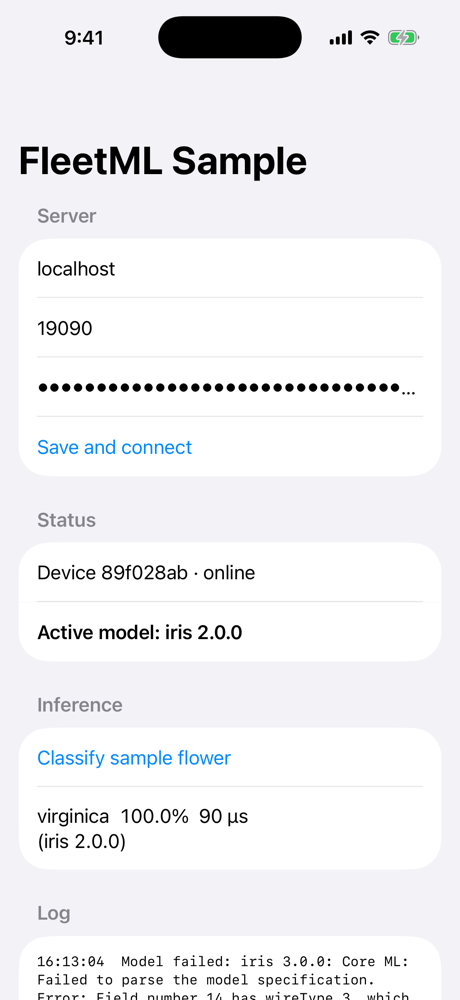
If validation fails, the active (last-known-good) model stays in place, the SDK
reports a MODEL_LOAD_FAILED event with the error (so a canary's health gate
can roll the release back), calls fleetML(modelLoadFailed:version:reason:),
and does not retry that variant for an hour.
Validators
ModelValidators.default() (used unless you pass validator: to
initialize) compiles the model with Core ML, loads it and, when every input
is a multi-array, runs one prediction on zeros. TensorFlow Lite files
(identifier TFL3) are accepted as they are, because iOS has no TFLite
runtime of its own. Write your own to check what matters to your app:
struct GoldenInputValidator: ModelValidator {
    func validate(fileURL: URL, model: ActiveModel) -> ValidationResult {
        runGoldenInput(fileURL) ? .valid : .invalid("golden input mismatch")
    }
}
try FleetML.initialize(config: config, delegate: self, validator: GoldenInputValidator())
Which variant a device gets
iOS devices register with OS IOS, and the server prefers COREML variants
for them (then TFLITE, then GGUF). Requirements default by quantization
(for example FP32 needs a device score of 60 and 2 GB of RAM, INT8 a score of
20), and an iPhone scores 54 at most, so an FP32 Core ML model reaches it only
with a lower requirement in the version's metadata. fleetml push sets it on
the version it creates:
fleetml push model.mlmodel --project <project ID> --model iris --version 1.0.0 --framework COREML --quantization FP32 --metadata '{"fleetml_requirements":{"min_ram_mb":64,"min_score":0}}'
If the device registers but never gets an assignment, compare the version's
requirements with the device: fleetml device profile <device ID> prints its
score and RAM (fleetml device list --project <project ID> gives the ID). How
the server matches devices, labels and variants is in
ROLLOUTS.md.
Battery and data
| In the foreground | In the background | |
|---|---|---|
| Heartbeat | every heartbeat_interval_seconds (server default 60 s) |
one per background refresh |
| Telemetry | batches of telemetry_batch_size (100), every telemetry_flush_interval_seconds (30 s) and when a batch fills |
one flush when the app goes to the background, one per background refresh |
| Background refresh | not scheduled | a BGAppRefreshTask no earlier than background_heartbeat_interval_seconds (1 h, at least 15 min); iOS decides the exact time |
| Model downloads | per download_policy |
per download_policy |
- Foreground only timers. The SDK stops its timers when the app enters the
background and starts them when it returns. To get the background refresh,
add
com.fleetml.sdk.refresh(FleetML.backgroundTaskIdentifier) toBGTaskSchedulerPermittedIdentifiersin yourInfo.plist, enable the "Background fetch" mode (UIBackgroundModes:fetch), and callFleetML.registerBackgroundTask()andFleetML.initializebefore the app finishes launching (the sample app does both in itsAppinitializer).FleetML.syncNow()runs one heartbeat and one telemetry flush on demand. How to trigger the refresh on a phone is in step 9 of Your own app on an iPhone. - Downloads.
.unmeteredOrCharging(the default): a network that is neither expensive (cellular, personal hotspot) nor constrained (Low Data Mode), or any network while the device charges..unmeteredOnlyand.anyNetworkare the alternatives. A waiting assignment is retried on the next heartbeat. Assignments of an urgent deployment, and every rollback, download on any connected network. - Telemetry is always batched; no event is sent on its own.
- The server sets all of these for every device with the
DEVICE_*variables (CONFIG.md);FleetMLConfigonly provides the values used before the first response. - The iOS Simulator cannot run background tasks (
BGTaskSchedulerreports it unavailable, and an app that permits the task logsBackground refresh not scheduled: background refresh is unavailable here (the simulator, or Background App Refresh is off in Settings)at info level).
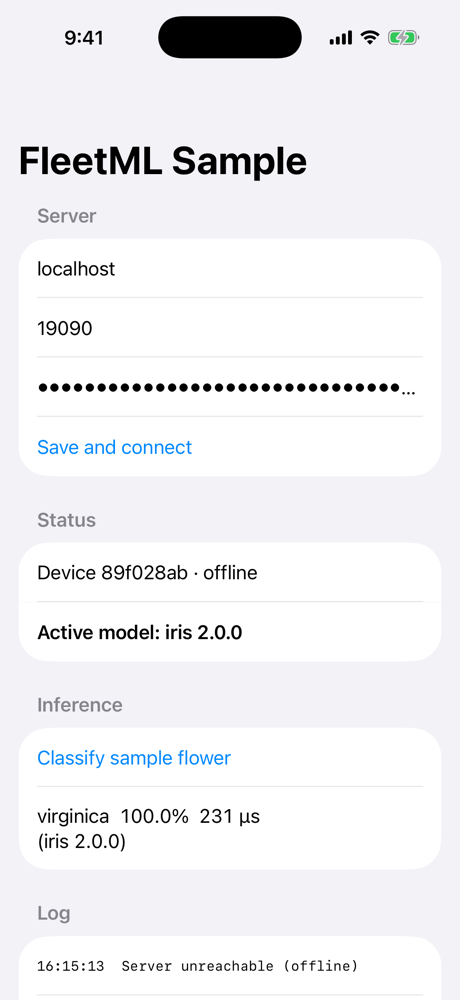
Offline behaviour
Models activated in an earlier run are delivered through
fleetML(modelReady:) (and FleetML.activeModels) as soon as the SDK starts,
before the server is reached. Until the server answers, the app keeps using its
cached models; fleetML(connectionChanged:) reports reachability within about
ten seconds.
Telemetry
if let model = FleetML.activeModel(named: "iris") {
    FleetML.telemetry?.reportInference(model: model, latencyMs: 3, confidence: 0.97, label: "virginica")
    // with input values, for feature-level drift (only features configured on the server are kept):
    FleetML.telemetry?.reportInference(model: model, latencyMs: 3, features: ["petal_length": [5.1]])
}
On the server, fleetml telemetry events --device <device ID> lists the
device's events (type, latency, confidence, error) once the SDK has flushed
them (30 seconds by default), and fleetml telemetry summary <version ID>
sums up a version's.
Events go into a persistent queue (bounded to 10,000; oldest dropped first): they survive app termination and are kept while offline or before registration. They are sent in batches every flush interval, with exponential backoff (5 s up to 5 min) after a failure and an immediate flush when the connection returns. For a model in an A/B experiment the event carries the device's arm ID automatically. Feature values are binned on the device with the edges from the server (feature-level drift); only the counts are sent.
Sample app
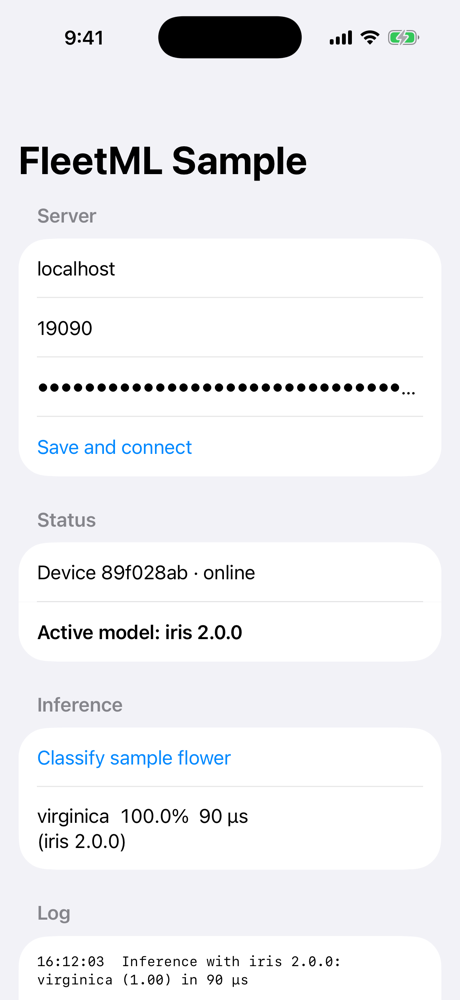
ios/SampleApp is the reference integration, generated with XcodeGen from
project.yml: a SwiftUI config screen (host, port, enrollment key; the key
field is masked, but crop the screen out of screenshots you share anyway), the SDK
owned by an app-wide object, the Iris Core ML model from models/iris
(Apache-2.0) bundled and used until the server assigns one, and inference
telemetry. Its Info.plist sets NSAllowsLocalNetworking and
NSLocalNetworkUsageDescription so model downloads from a server on the Mac
work over plain HTTP, on the simulator and on a phone; production servers
should serve presigned URLs over HTTPS. The config screen's host defaults to
localhost, which works on the simulator; on a phone, use the Mac's LAN
address. Unlike an own app, it takes its settings from the environment
(FLEETML_HOST, FLEETML_PORT, FLEETML_ENROLLMENT_KEY, which
SIMCTL_CHILD_ and DEVICECTL_CHILD_ in front of each name pass to the
app without putting the key on a command line), as launch arguments
(-fleetmlHost, -fleetmlPort) or on its config screen, and keeps them for
later launches.
Simulator runbook
This is how the SDK and sample app are verified, against the server from the
quickstart (the production compose stack, with the
admin key in $FLEETML_ADMIN_KEY) and the fleetml CLI, from the root of a
clone. The simulator shares the Mac's localhost, so the server needs no
change. It needs Xcode and XcodeGen
(brew install xcodegen). Contributors on the dev stack (make dev) use the
key from .env instead.
-
Start the server with the quickstart's "Run FleetML" block (or
source ~/.fleetml.envin a new shell). -
Publish the Core ML sample models (with the requirements override from Which variant a device gets), create an enrollment key and deploy 1.0.0 to the sample app's label (
app=sample):export FLEETML_SERVER=http://localhost:${FLEETML_REST_PORT:-18080} FLEETML_API_KEY=$FLEETML_ADMIN_KEY REQ='{"fleetml_requirements":{"min_ram_mb":64,"min_score":0}}' P=$(fleetml project create --name ios-demo -o json | jq -r .id) fleetml push models/iris/iris_v1.mlmodel --project $P --model iris --version 1.0.0 --framework COREML --quantization FP32 --metadata "$REQ" fleetml push models/iris/iris_v2.mlmodel --project $P --model iris --version 2.0.0 --framework COREML --quantization FP32 --metadata "$REQ" M=$(fleetml model list --project $P -o json | jq -r '.[] | select(.name == "iris") | .id') V1=$(fleetml ver list --model $M -o json | jq -r '.[] | select(.version == "1.0.0") | .id') V2=$(fleetml ver list --model $M -o json | jq -r '.[] | select(.version == "2.0.0") | .id') export FLEETML_ENROLLMENT_KEY=$(fleetml enrollment-key create --project $P --name simulator -o json | jq -r .key) D=$(fleetml deploy create --project $P --version $V1 --target '{"app":"sample"}' -o json | jq -r .id) fleetml deploy start $DEach push prints
✓ Pushed ... (FP32), and the deployment starts asCOMPLETE(✓ Deployment start → COMPLETE): it waits for the device. -
Generate the Xcode project, build, install and launch the sample app on the first available iPhone simulator, with the settings in its environment (or, after
xcodegen generate, openios/SampleApp/FleetMLSample.xcodeproj, run it and type them on the config screen):cd ios/SampleApp && xcodegen generate SIM=$(xcrun simctl list devices available -j | jq -r '[.devices[][] | select(.name | startswith("iPhone"))][0].udid') xcodebuild -project FleetMLSample.xcodeproj -scheme FleetMLSample -destination "platform=iOS Simulator,id=$SIM" -derivedDataPath build build xcrun simctl boot $SIM; open -a Simulator xcrun simctl install $SIM build/Build/Products/Debug-iphonesimulator/FleetMLSample.app SIMCTL_CHILD_FLEETML_HOST=localhost SIMCTL_CHILD_FLEETML_PORT=${FLEETML_GRPC_PORT:-19090} SIMCTL_CHILD_FLEETML_ENROLLMENT_KEY=$FLEETML_ENROLLMENT_KEY xcrun simctl launch --console-pty $SIM com.fleetml.sampleOn a simulator where the sample app ran before, its saved settings stay, and the environment replaces what it sets:
xcrun simctl uninstall $SIM com.fleetml.samplebefore the install starts it clean. The app registers, downloads iris 1.0.0, validates it with Core ML, shows Active model: iris 1.0.0 and classifies the sample flower with it, reporting inference telemetry; the console prints the same steps (FleetMLSample: Registered as ...,Model ready: iris 1.0.0).fleetml deploy create --project $P --version $V2 --target '{"app":"sample"}'anddeploy startupdate the app to 2.0.0 on its next heartbeat, 60 seconds by default (1.0.0 is kept as last-known-good).fleetml deploy get $D | jq -c .devicescounts the devices whose last heartbeat reported a version, soloadedturns one heartbeat after the app shows the model, and it is counted each time you ask: once 2.0.0 replaces 1.0.0,$Dcounts down to{"loaded":0,"targeted":1}. -
Offline start: stop the server (
docker compose -f deploy/docker-compose.prod.yml stop server), thenxcrun simctl terminate $SIM com.fleetml.sampleand launch the app again. The cached model is active immediately and inference works; events are queued and sent once the server is back (docker compose -f deploy/docker-compose.prod.yml start server). On a server that others use, launch the app with a closed port instead; the launch line'sSIMCTL_CHILD_FLEETML_PORTdecides the port (a-fleetmlPortargument next to it is overridden), so change it there:SIMCTL_CHILD_FLEETML_PORT=19999 xcrun simctl launch --terminate-running-process $SIM com.fleetml.sampleThe app starts with its cached model and logs
Registration failed: deadlineExceeded(a closed port, see When it does not connect). The same line withSIMCTL_CHILD_FLEETML_PORT=${FLEETML_GRPC_PORT:-19090}brings it back; the app keeps the last port it was given.
Physical device
The sample app runs on an iPhone too, over Wi-Fi, with the same server and
models, after steps 1 and 2 of Your own app on an
iPhone (Developer Mode, Apple ID, the server
with S3_PUBLIC_ENDPOINT on the Mac's LAN address in ~/.fleetml.env), and
with the phone unlocked and the app in front (step 5). Its Info.plist already has
the keys a phone needs. After xcodegen generate, open
ios/SampleApp/FleetMLSample.xcodeproj and, on the FleetMLSample target's
Signing & Capabilities tab, turn on Automatically manage signing with
your team; or pass the team on the command line as below, where <team> is
its ID and <device> the phone's identifier from
xcrun devicectl list devices. The config screen's default host,
localhost, is the phone itself, so on a phone always give the Mac's
address:
cd ios/SampleApp && xcodegen generate
xcodebuild -project FleetMLSample.xcodeproj -scheme FleetMLSample -destination 'id=<device>' -derivedDataPath build -allowProvisioningUpdates DEVELOPMENT_TEAM=<team> ENABLE_PREVIEWS=NO build
xcrun devicectl device install app --device <device> build/Build/Products/Debug-iphoneos/FleetMLSample.app
DEVICECTL_CHILD_FLEETML_HOST=<Mac LAN IP> DEVICECTL_CHILD_FLEETML_PORT=${FLEETML_GRPC_PORT:-19090} DEVICECTL_CHILD_FLEETML_ENROLLMENT_KEY=$FLEETML_ENROLLMENT_KEY xcrun devicectl device process launch --device <device> --console com.fleetml.sample
The trust prompt, the Local Network prompt and the error codes are as in steps 5 and 6 of the own app's runbook.
Tests
make ios-test
runs the unit tests on macOS (swift test at the repository root). The same
suite runs on a simulator, from the root, with the first available iPhone
simulator (xcrun simctl list devices available lists them):
SIM=$(xcrun simctl list devices available -j | jq -r '[.devices[][] | select(.name | startswith("iPhone"))][0].udid')
xcodebuild test -scheme FleetMLSDK -destination "platform=iOS Simulator,id=$SIM"
The package's deployment target is iOS 15. The suite, the live test and the
signing check have passed on the iOS 16.4 simulator (an iPhone 14) and on the
iOS 26 simulator; no iOS 15 runtime was tested. Older runtimes are installed
with xcodebuild -downloadPlatform iOS -buildVersion 16.4. The SDK was also
verified on a physical iPhone running iOS 26 (lifecycle, update, offline,
download policy, signing, background refresh), with the sample app as in
Physical device.
The suite covers the telemetry queue and reporter, the model store, the
downloader (including an interrupted transfer resumed with Range), cache
eviction, the model manager (activation, last-known-good, UPDATE + UNLOAD,
restart), the token refresh policy, the heartbeat loop, connection errors
reaching the delegate, the Core ML validator on the real Iris model, the
battery and data policy, and signature checks against the shared vectors in
internal/artifact/testdata. make proto-swift regenerates the gRPC client
code from proto/.
The live tests (scripts/ios-e2e.sh and scripts/signing-e2e.sh ios) stay
simulator-only, because Swift package tests cannot run on a physical device
(xcodebuild reports "Tool-hosted testing is unavailable on device
destinations") unless an app target hosts them. The download policy can be
exercised on a phone by hand instead: on battery and with Low Data Mode on for
the Wi-Fi network, a non-urgent deployment waits and an urgent one downloads.
For contributors
Against the dev stack (make dev):
FLEETML_API_KEY=<admin key> ./scripts/ios-e2e.sh runs the live test, and
FLEETML_API_KEY=<admin key> ./scripts/signing-e2e.sh ios the signature
checks (tampered, and the rotation grace). scripts/ios-e2e.sh creates a
non-urgent deployment and runs LiveServerTests on the simulator: a device on
an expensive network and on battery registers, its model waits, then an urgent
deployment downloads and activates. Without the script's environment the live
test is skipped.
Contact
- Anything about FleetML: [email protected].
- A security problem: [email protected], see SECURITY.md.
- Questions in public: GitHub Discussions.
- Bugs: GitHub Issues, with the FleetML version and the command or log line that shows the problem.