Android SDK
The FleetML Android SDK, dev.fleetml:fleetml-sdk on Maven Central (Kotlin,
minSdk 26), puts a device under FleetML's control: it registers with an
enrollment key, receives model assignments over gRPC, downloads and verifies
them, validates each model before using it, keeps the last-known-good
version, works offline, and reports telemetry. It does not run your models:
your app does, with TFLite, ONNX Runtime or anything else.
This guide starts with the sample app on your phone (Get started), then follows the path to your own app and to production: add the SDK, configure it, publish and deploy a model for it, run it on your phone, test updates and offline behaviour, and check what production needs. The emulator, Windows and the sample app follow as variants of the same steps.
Get started
The sample app on your phone over a USB cable, against a server on your Mac: copy and paste, nothing to choose. Each step says what you should see; if you see something else, stop there and look it up in Troubleshooting. Use one terminal and keep it open until the end. On Linux, see Installing the tools; on Windows, From Windows.
Before you start, once: Android Studio
(it installs the Android SDK and adb), Homebrew and Docker
Desktop; on the phone, USB debugging (Settings, About phone, tap Build
number seven times, then Settings, System, Developer options, USB
debugging). Connect the phone with its cable, accept the prompt on it, and
keep it unlocked while you test: a locked phone pauses the app.
-
Check the tools. This installs JDK 17, the one the build needs, and puts
adbon thePATHof this terminal:brew install -q openjdk@17 export JAVA_HOME=$(brew --prefix openjdk@17) ANDROID_HOME=$HOME/Library/Android/sdk export PATH="$ANDROID_HOME/platform-tools:$PATH" docker compose version && jq --version && "$JAVA_HOME/bin/java" -version && adb versionYou should see
openjdk version "17.andAndroid Debug Bridge version. -
Start FleetML. The first start takes a few minutes, to download and build the images:
[ -f deploy/docker-compose.prod.yml ] || { [ -d fleetml ] || git clone https://github.com/fleetml/fleetml.git; cd fleetml; }
[ -f ~/.fleetml.env ] || (umask 077; printf "export JWT_SECRET='%s' SIGNING_MASTER_KEY='%s' FLEETML_ADMIN_KEY='%s' FLEETML_REST_PORT=%s FLEETML_GRPC_PORT=%s FLEETML_DASHBOARD_PORT=%s FLEETML_S3_PUBLIC_PORT=%s S3_PUBLIC_ENDPOINT=localhost:%s\n" "$(openssl rand -base64 32)" "$(openssl rand -base64 32)" "$(openssl rand -hex 32)" "${FLEETML_REST_PORT:-18080}" "${FLEETML_GRPC_PORT:-19090}" "${FLEETML_DASHBOARD_PORT:-80}" "${FLEETML_S3_PUBLIC_PORT:-19100}" "${FLEETML_S3_PUBLIC_PORT:-19100}" > ~/.fleetml.env)
source ~/.fleetml.env
docker compose -f deploy/docker-compose.prod.yml up -d --build && for i in $(seq 90); do curl -sf localhost:${FLEETML_REST_PORT:-18080}/readyz && break; [ $i = 90 ] && echo "Not ready after 3 minutes: see Troubleshooting in docs/ADVANCED.md"; sleep 2; done || echo "Start failed: see Troubleshooting in docs/ADVANCED.md"; echo
curl -sf -H "Authorization: Bearer $FLEETML_ADMIN_KEY" localhost:${FLEETML_REST_PORT:-18080}/api/v1/projects && echo && echo "Dashboard: http://localhost:${FLEETML_DASHBOARD_PORT:-80}  (log in with FLEETML_ADMIN_KEY from ~/.fleetml.env)"
You should see
{"db":"connected","nats":"connected","s3":"connected","status":"ok","version":"<version>"}. The block saved the server's secrets in~/.fleetml.env: keep that file. -
Get the CLI, checked against the release's checksums:
OS=$(uname -s | tr '[:upper:]' '[:lower:]'); ARCH=$(uname -m | sed -e 's/x86_64/amd64/' -e 's/aarch64/arm64/')
curl -fsSLO "https://github.com/fleetml/fleetml/releases/latest/download/fleetml-$OS-$ARCH.tar.gz"
curl -fsSLO https://github.com/fleetml/fleetml/releases/latest/download/SHA256SUMS
grep " fleetml-$OS-$ARCH.tar.gz\$" SHA256SUMS | shasum -a 256 -c
mkdir -p ~/.local/bin && tar -xzf "fleetml-$OS-$ARCH.tar.gz" -C ~/.local/bin fleetml
rm "fleetml-$OS-$ARCH.tar.gz" SHA256SUMS
export PATH="$HOME/.local/bin:$PATH"
fleetml version
You should see
fleetml-<os>-<arch>.tar.gz: OKand✓ fleetml v<version>. -
Publish the sample model and deploy it. The project gets the time in its name, so running the block again makes a new one:
export FLEETML_SERVER=http://localhost:${FLEETML_REST_PORT:-18080} FLEETML_API_KEY=$FLEETML_ADMIN_KEY
P=$(fleetml project create --name "first-$(date +%H%M%S)" -o json | jq -r .id)
fleetml push models/iris/iris_v1.tflite --project $P --model iris --version 1.0.0
V=$(fleetml ver list --model "$(fleetml model list --project $P -o json | jq -r '.[0].id')" -o json | jq -r '.[0].id')
fleetml deploy start "$(fleetml deploy create --project $P --version $V -o json | jq -r .id)"
export FLEETML_ENROLLMENT_KEY=$(fleetml enrollment-key create --project $P --name first-device -o json | jq -r .key)
You should see
✓ Pushed models/iris/iris_v1.tflite → iris v1.0.0 (INT8)and✓ Deployment start → COMPLETE. -
Put the phone on it. Unlock the phone and keep its screen on until this step ends: a locked phone stops the app. This builds the sample app with the enrollment key from step 4 and installs it, forwards the server's ports to the phone (after the install, since a build can restart
adb, which drops the forwards), starts the app and waits until the model is active on the phone (a minute or two the first time, for the build). It takes the first deviceadb deviceslists and says which; with an emulator or a second phone attached, runexport ANDROID_SERIAL=<serial>with the phone's serial fromadb devicesfirst:export ANDROID_SERIAL=${ANDROID_SERIAL:-$(adb devices | awk 'NR > 1 && $2 == "device" { print $1; exit }')}; echo "Device: $ANDROID_SERIAL, $(adb shell getprop ro.product.model)" (cd android && ORG_GRADLE_PROJECT_fleetmlEnrollmentKey=$FLEETML_ENROLLMENT_KEY ./gradlew -q :sample-app:installDebug -PfleetmlDebugHost=localhost -PfleetmlDebugPort=${FLEETML_GRPC_PORT:-19090} < /dev/null) && adb reverse tcp:${FLEETML_GRPC_PORT:-19090} tcp:${FLEETML_GRPC_PORT:-19090} && adb reverse tcp:${FLEETML_S3_PUBLIC_PORT:-19100} tcp:${FLEETML_S3_PUBLIC_PORT:-19100} && adb logcat -c && adb shell am start -n com.fleetml.sample/.MainActivity < /dev/null && for i in $(seq 90); do adb logcat -d -s FleetML:I | grep -m 1 'is active' && break; [ $i = 90 ] && echo "Not active after 3 minutes: see Troubleshooting"; sleep 2; done || echo "Step 5 stopped at the error above: see Troubleshooting"You should see
Device:with the phone's serial and model,Installed on 1 device., the two forwarded ports (only the first time: run again, the forwards are already there andadb reverseprints nothing), thenI FleetML : Model iris 1.0.0 is active, and the app's screen Active model: iris 1.0.0. Tap Classify sample flower to run it. If it saysNot active after 3 minutes, see Troubleshooting: the phone locked, a missing forward, or the wrong device. A failed build or install stops the block withStep 5 stopped at the error above: Troubleshooting has the install errors too. -
See it in the dashboard. This puts the admin key on the clipboard (on a Mac, in WSL, or on Linux with
xclip; elsewhere it prints it) and prints the dashboard's address: open it and paste the key into the login box:printf %s "$FLEETML_ADMIN_KEY" | { pbcopy || clip.exe || xclip -selection clipboard || cat; } 2> /dev/null; echo echo "Dashboard: http://localhost:${FLEETML_DASHBOARD_PORT:-80}"You should see
Dashboard: http://localhost:<port>, and in the browser the Overview page (Dashboard in the menu); Devices lists one device, and Deployments oneCOMPLETEdeployment of iris 1.0.0. -
Clean up: the app, the forwards, the server and all its data, and the saved secrets:
adb uninstall com.fleetml.sample; adb reverse --remove-all
source ~/.fleetml.env && docker compose -f deploy/docker-compose.prod.yml down -v && rm -f ~/.fleetml.env
You should see
SuccessandNetwork <stack>_default Removed. With two devices attached,adbworks on the one inANDROID_SERIAL(step 5); the other one keeps the app and its forwards untiladb -s <its serial> uninstall com.fleetml.sample; adb -s <its serial> reverse --remove-all(adb deviceslists the serials).
Then your own app: Install and Configure and start, with the same server and key. The emulator instead of a phone: Emulator. A phone over Wi-Fi: ADVANCED.md.
Install
The SDK is on Maven Central; 0.10.7 is the version this guide describes (0.4.0
lacks the passed validation logcat line and still logs a failed heartbeat
with a stack trace). Add it to the app with TensorFlow Lite next to it:
// app/build.gradle.kts
dependencies {
    implementation("dev.fleetml:fleetml-sdk:0.10.7")
    implementation("org.tensorflow:tensorflow-lite:2.17.0") // if you run TFLite models
}
The app's repositories must include mavenCentral(), as a new Android Studio
project's settings.gradle.kts does (a new project from the command
line lists the files without the
wizard). The SDK needs minSdk 26 and is built
with compileSdk and targetSdk 34 and Java 8 bytecode, so the app needs
compileSdk 34 or later. TensorFlow Lite is not a dependency of the SDK: the app
brings the runtime it uses, and the default validator uses it when it is there
(Validators).
The app needs no permission of its own for the SDK: the SDK's manifest
declares INTERNET and ACCESS_NETWORK_STATE, WorkManager, which it uses for
background checks, adds WAKE_LOCK, RECEIVE_BOOT_COMPLETED and
FOREGROUND_SERVICE, and AndroidX Core adds the app's own
<application ID>.DYNAMIC_RECEIVER_NOT_EXPORTED_PERMISSION to the merged
manifest.
The SDK brings these libraries with it: protobuf-kotlin-lite 3.25 (as an
api dependency: protobuf-lite messages appear in its public API),
grpc-okhttp and the gRPC stubs 1.62, okhttp 4.12, WorkManager 2.9,
lifecycle-process, security-crypto and BouncyCastle (bcprov-jdk18on).
Where the app asks for a newer version of one of them, Gradle uses the newer
one; the SDK is tested with the versions above, and
./gradlew :app:dependencies --configuration debugRuntimeClasspath shows what
the app ends up with. An app that already uses the full protobuf-java gets
duplicate-class errors from Gradle, because protobuf-javalite and
protobuf-java hold the same classes; the usual fix is to exclude the lite
runtime, since the full one also contains the classes lite-generated code uses
(not tested here with every protobuf version):
implementation("dev.fleetml:fleetml-sdk:0.10.7") {
    exclude(group = "com.google.protobuf", module = "protobuf-javalite")
}
From a clone
To work against changes that are not released yet, include the module from a clone of this repository instead:
// settings.gradle.kts
include(":fleetml-sdk")
project(":fleetml-sdk").projectDir = file("path/to/fleetml/android/fleetml-sdk")

// app/build.gradle.kts
dependencies {
    implementation(project(":fleetml-sdk"))
    implementation("org.tensorflow:tensorflow-lite:2.17.0") // if you run TFLite models
}
The module's own build uses two more Gradle plugins and reads its version from
a property, which the app's build must then provide too: next to the app's
Android and Kotlin plugins in the root build.gradle.kts,
plugins {
    id("com.google.protobuf") version "0.9.4" apply false
    id("com.vanniktech.maven.publish") version "0.34.0" apply false
}
and sdkVersion=0.10.7-dev (any version string) in the app's
gradle.properties. Without them Gradle stops with
Plugin [id: 'com.google.protobuf'] was not found.
Building on the command line, the SDK from source or your own app from
the skeleton below, needs JDK 17: the
wrapper's Gradle 8.7 with AGP 8.5 stops at once on a newer JDK with
What went wrong: <its version>, for example 26.0.2.1 for Homebrew's
current openjdk, the java on a Mac's PATH. Point JAVA_HOME at a
JDK 17 in the shell you build in:
export JAVA_HOME=/opt/homebrew/opt/openjdk@17 on macOS with Homebrew
(brew install openjdk@17), /usr/lib/jvm/java-17-openjdk-amd64 on Debian
and Ubuntu (sudo apt install openjdk-17-jdk). Android Studio runs Gradle with the JDK
in its Gradle settings (Settings, Build, Execution, Deployment, Build Tools,
Gradle, Gradle JDK), by default its bundled JetBrains Runtime, which is Java
25 in Android Studio 2026.1: with it, Gradle 8.7 stops at once with
What went wrong: 25.0.2. Pick a JDK 17 there, or point JAVA_HOME at one
on the command line.
A new project from the command line
Without Android Studio's wizard, these are the files of an app with the SDK,
on the versions the SDK is built and tested with: AGP 8.5.0, Kotlin 1.9.24,
Gradle 8.7 and JDK 17. The Gradle wrapper (gradlew, gradlew.bat and the
gradle folder) comes from any project on Gradle 8.7, such as a clone of
this repository: cp -R <clone>/android/gradlew <clone>/android/gradlew.bat <clone>/android/gradle .
(in PowerShell: Copy-Item -Recurse <clone>\android\gradlew, <clone>\android\gradlew.bat, <clone>\android\gradle .).
// settings.gradle.kts
pluginManagement {
    repositories { google(); mavenCentral(); gradlePluginPortal() }
}
dependencyResolutionManagement {
    repositories { google(); mavenCentral() }
}
rootProject.name = "myapp"
include(":app")
// build.gradle.kts
plugins {
    id("com.android.application") version "8.5.0" apply false
    id("org.jetbrains.kotlin.android") version "1.9.24" apply false
}
// app/build.gradle.kts
plugins {
    id("com.android.application")
    id("org.jetbrains.kotlin.android")
}

android {
    namespace = "com.example.myapp"
    compileSdk = 34
    defaultConfig {
        applicationId = "com.example.myapp"
        minSdk = 26
        targetSdk = 34
    }
    kotlinOptions { jvmTarget = "1.8" }
}

dependencies {
    implementation("dev.fleetml:fleetml-sdk:0.10.7")
    implementation("org.tensorflow:tensorflow-lite:2.17.0")
    implementation("androidx.appcompat:appcompat:1.7.0")
    implementation("androidx.lifecycle:lifecycle-runtime-ktx:2.8.7")
}
The manifest names the application class and a launcher activity, with an
AppCompat theme (an AppCompatActivity under any other theme stops at launch
with You need to use a Theme.AppCompat theme), and the SDK's backup rules,
which keep its encrypted registration out of backups
(Enrollment and identity):
<!-- app/src/main/AndroidManifest.xml -->
<manifest xmlns:android="http://schemas.android.com/apk/res/android">
    <application
        android:name=".MyApp"
        android:label="MyApp"
        android:theme="@style/Theme.AppCompat.DayNight.NoActionBar"
        android:fullBackupContent="@xml/fleetml_backup_rules"
        android:dataExtractionRules="@xml/fleetml_data_extraction_rules">
        <activity android:name=".MainActivity" android:exported="true">
            <intent-filter>
                <action android:name="android.intent.action.MAIN" />
                <category android:name="android.intent.category.LAUNCHER" />
            </intent-filter>
        </activity>
    </application>
</manifest>
and the activity shows whether the server was reached and which model is active:
// app/src/main/java/com/example/myapp/MainActivity.kt
package com.example.myapp

import android.os.Bundle
import android.widget.TextView
import androidx.appcompat.app.AppCompatActivity
import androidx.lifecycle.lifecycleScope
import com.fleetml.sdk.FleetML
import kotlinx.coroutines.launch

class MainActivity : AppCompatActivity() {
    override fun onCreate(savedInstanceState: Bundle?) {
        super.onCreate(savedInstanceState)
        val status = TextView(this).also { setContentView(it) }
        lifecycleScope.launch {
            val reached = FleetML.syncNow()
            status.text = "Server reached: $reached\nModel: ${FleetML.activeModel("iris")?.version ?: "none yet"}"
        }
    }
}
gradle.properties holds android.useAndroidX=true, and
local.properties (or ANDROID_HOME) the Android SDK's folder,
sdk.dir=<home>/Library/Android/sdk on macOS, sdk.dir=<home>/Android/Sdk
on Linux, sdk.dir=C\:\\Users\\<you>\\AppData\\Local\\Android\\Sdk on Windows
(or ANDROID_HOME set as in From Windows). Add the android block of
Configure and start for the server's host and key,
and its MyApp class in app/src/main/java/com/example/myapp/MyApp.kt
with package com.example.myapp on top; for a server on your machine, the
two debug files of On your phone. With JAVA_HOME at a
JDK 17 (above), ./gradlew :app:assembleDebug builds it and ORG_GRADLE_PROJECT_fleetmlEnrollmentKey=$FLEETML_ENROLLMENT_KEY ./gradlew :app:installDebug -PfleetmlDebugHost=localhost -PfleetmlDebugPort=${FLEETML_GRPC_PORT:-19090}
installs it (Publish and deploy has $FLEETML_ENROLLMENT_KEY).
After a deployment to app=myapp the screen reads Server reached: true
and Model: 1.0.0.
Configure and start
Initialize once per process, in Application.onCreate(), so screen rotation
never re-initializes the SDK. The configuration below is the production one:
your server's host name, port 443 and TLS, with the server behind a TLS proxy
(Production checklist). The host and the enrollment
key come from Gradle properties rather than the source, and debug builds
switch to a server on your own machine without TLS, in app/build.gradle.kts:
android {
    buildFeatures { buildConfig = true } // AGP 8 turns BuildConfig off by default
    defaultConfig {
        buildConfigField("String", "FLEETML_HOST", "\"${project.findProperty("fleetmlHost") ?: "fleet.example.com"}\"")
        buildConfigField("int", "FLEETML_PORT", "443")
        buildConfigField("boolean", "FLEETML_TLS", "true")
        buildConfigField("String", "FLEETML_ENROLLMENT_KEY", "\"${project.findProperty("fleetmlEnrollmentKey") ?: ""}\"")
    }
    buildTypes {
        debug {
            // A server on your machine: localhost for a phone over USB, 10.0.2.2 for the emulator,
            // the machine's LAN address for a phone over Wi-Fi; the port is the
            // stack's gRPC port (-PfleetmlDebugPort=${FLEETML_GRPC_PORT:-19090}).
            buildConfigField("String", "FLEETML_HOST", "\"${project.findProperty("fleetmlDebugHost") ?: "localhost"}\"")
            buildConfigField("int", "FLEETML_PORT", "${project.findProperty("fleetmlDebugPort") ?: "19090"}")
            buildConfigField("boolean", "FLEETML_TLS", "false")
        }
    }
}
Without buildFeatures { buildConfig = true }, an AGP 8 project stops with
Unresolved reference: BuildConfig. The build gets the values as Gradle
properties: the enrollment key from the environment,
ORG_GRADLE_PROJECT_fleetmlEnrollmentKey=$FLEETML_ENROLLMENT_KEY ./gradlew :app:installDebug
(Gradle reads ORG_GRADLE_PROJECT_<name> as the property <name>, and the
key stays off the command line, where -PfleetmlEnrollmentKey= would show it
to anyone who lists processes), the host as -PfleetmlDebugHost=..., or both
from ~/.gradle/gradle.properties, outside the project
(fleetmlEnrollmentKey=..., fleetmlHost=...). The enrollment key comes from
fleetml enrollment-key create --project <project ID>, which prints it once
(Publish and deploy). The SDK's classes are
in the package com.fleetml.sdk; the Maven group, dev.fleetml, is a
different name, so import dev.fleetml... finds nothing:
import android.app.Application
import com.fleetml.sdk.*

class MyApp : Application(), FleetMLCallback {
    override fun onCreate() {
        super.onCreate()
        FleetML.init(
            context = this,
            config = FleetMLConfig(
                serverHost = BuildConfig.FLEETML_HOST,
                serverPort = BuildConfig.FLEETML_PORT,
                useTls = BuildConfig.FLEETML_TLS,
                enrollmentKey = BuildConfig.FLEETML_ENROLLMENT_KEY,
                labels = mapOf("app" to "myapp", "tier" to "beta"),
            ),
            callback = this,
        )
    }

    override fun onModelReady(model: ActiveModel) {
        // model.file is verified and validated: load it.
    }
}
Register the class in AndroidManifest.xml with
<application android:name=".MyApp" ...>. For a quick test only,
enrollmentKey = "<enrollment key>" works too, but the key then sits in a file
you commit. After Publish and deploy,
the debug values are what On your phone uses, with
localhost over USB or the LAN address over Wi-Fi, and the
Emulator with 10.0.2.2.
FleetMLCallback has five methods, each with an empty default, so implement
only what the app needs. They run on a background thread: switch to the main
thread before touching views.
| Callback | When |
|---|---|
onModelReady(model: ActiveModel) |
A model was downloaded, verified and validated and is now active; also at start for models cached from an earlier run |
onModelUnload(modelId: String, modelName: String, variantId: String) |
The server no longer assigns the model |
onModelLoadFailed(modelName: String, version: String, reason: String) |
A new version could not be downloaded or failed validation; the last-known-good one stays |
onRegistered(deviceId: String) |
The device registered (or re-registered) |
onConnectionStatusChanged(connected: Boolean) |
The server became reachable or unreachable |
onModelReady hands over an ActiveModel:
ActiveModel field |
Type | What it is |
|---|---|---|
modelName |
String |
The model's name, for example iris |
version |
String |
The version, for example 1.0.0 |
file |
java.io.File |
The model file on disk, sha256-verified and validated: load this |
modelId |
String |
The model's ID, the same for every version |
versionId |
String |
The version's ID; telemetry is attributed to it |
variantId |
String |
The variant (one file of the version) the server chose for this device |
sha256 |
String |
The file's sha256 |
The other calls on FleetML:
| Call | What it does |
|---|---|
fun activeModel(modelName: String): ActiveModel? |
The active version of one model, or null before it has one |
fun activeModels(): List<ActiveModel> |
Every active model |
suspend fun syncNow(): Boolean |
One heartbeat and one telemetry flush now; true if the server was reached |
fun getTelemetryReporter(): TelemetryReporter |
Reports inferences (Telemetry) |
fun deviceId(): String?, fun isRegistered(): Boolean |
The device's ID once registered |
fun stop() |
Stops background work and clears the singleton, so init can be called again (for example with a new server address) |
fun reset(context: Context? = null) |
Also deletes cached models and the registration; with a context, before init |
syncNow() is a suspend function, so call it from a coroutine, for example
from an AndroidX activity (AppCompatActivity or ComponentActivity; a
plain android.app.Activity has no lifecycleScope) with
androidx.lifecycle:lifecycle-runtime-ktx:2.8.7 in the app's dependencies
and import androidx.lifecycle.lifecycleScope and
import kotlinx.coroutines.launch in the file:
lifecycleScope.launch { val reached = FleetML.syncNow() }
Called while a heartbeat is in flight, at start-up for example, it joins that
heartbeat rather than sending a second one, so a model is downloaded and
onModelReady fires once.
FleetMLConfig field |
Default | Purpose |
|---|---|---|
serverHost, serverPort |
–, 19090 |
The FleetML gRPC endpoint |
enrollmentKey |
"" |
Per-project key for the first registration (fleetml enrollment-key create) |
useTls |
false |
TLS for gRPC (true with the server behind a TLS proxy, as in production) |
labels |
{} |
Labels deployments and experiments target (target_selector) |
heartbeatIntervalSeconds |
30 |
Foreground heartbeat interval, until the server sends its own (server default 60) |
backgroundHeartbeatIntervalSeconds |
3600 |
Background check interval, until the server sends its own (at least 15 minutes) |
telemetryBatchSize, telemetryFlushIntervalSeconds |
50, 30 |
Until the server's DeviceConfig overrides them (server default 100; the SDK uses 50 until the first response) |
maxCacheSizeMb |
500 |
Disk budget for models; the active and last-known-good models are never evicted |
downloadPolicy |
UNMETERED_OR_CHARGING |
Which networks non-urgent downloads may use, until the server sends its own (Battery and data) |
autoStart |
true |
Call FleetML.start() yourself if false |
Publish and deploy with the CLI
The CLI side: a project, two versions, an enrollment key, and a deployment to
the labels the app sets (app=myapp above). It needs the fleetml CLI
(Get the CLI) and jq, and a key for the server:
- The server's admin key (the quickstart's
$FLEETML_ADMIN_KEY) does everything below, including creating the project. - A key for a user with the
adminrole in an existing project does everything but create the project (Error: this needs a global admin); withoperatorit publishes and deploys, andenrollment-key createstops withError: this needs the admin role in this project(roles). - Only the enrollment key, when whoever runs the server creates the deployment: the app needs nothing else.
The two models are the sample's, from the root of a clone; push your own
.tflite files instead. Project names are unique on a server: on a second
run, project already exists: slug "myapp" means the project is there from
the first, so use P=<its ID> (from fleetml project list) in place of the
second line, or another name. With the quickstart's server, FLEETML_SERVER is
http://localhost:${FLEETML_REST_PORT:-18080} and the key $FLEETML_ADMIN_KEY after
source ~/.fleetml.env:
export FLEETML_SERVER=<server URL> FLEETML_API_KEY=<the admin or project key your team gave you>
P=$(fleetml project create --name myapp -o json | jq -r .id)   # or P=<the project ID your team gave you>
fleetml push models/iris/iris_v1.tflite --project $P --model iris --version 1.0.0
fleetml push models/iris/iris_v2.tflite --project $P --model iris --version 2.0.0
M=$(fleetml model list --project $P -o json | jq -r '.[] | select(.name == "iris") | .id')
V1=$(fleetml ver list --model $M -o json | jq -r '.[] | select(.version == "1.0.0") | .id')
V2=$(fleetml ver list --model $M -o json | jq -r '.[] | select(.version == "2.0.0") | .id')
export FLEETML_ENROLLMENT_KEY=$(fleetml enrollment-key create --project $P --name myapp -o json | jq -r .key)
D1=$(fleetml deploy create --project $P --version $V1 --target '{"app":"myapp"}' -o json | jq -r .id)
fleetml deploy start $D1
Each push prints ✓ Pushed .... The enrollment key is in $FLEETML_ENROLLMENT_KEY
(-o json | jq -r .key takes the key; the plain command prints it once for
copying); build the app with it from the same shell, as in On your
phone. The deployment starts as COMPLETE
(✓ Deployment start → COMPLETE), which means assigned; once the app runs,
logcat shows Model iris 1.0.0 is active. fleetml deploy get $D1 | jq -c .devices
counts what the devices reported in their last heartbeat, so it prints
{"loaded":0,"targeted":0} until the app has registered,
{"loaded":0,"targeted":1} until its next heartbeat (60 seconds by
default) and {"loaded":1,"targeted":1} after it; it is counted each time you
ask, so once 2.0.0 replaces it, this deployment counts down to
{"loaded":0,"targeted":1}.
When you are done, on a server you keep, fleetml project delete $P
removes the project with its devices, deployments and telemetry, so the
phone's test leaves nothing behind (it asks for no confirmation and cannot
be undone); the quickstart's Clean up removes the
whole stack instead.
On your phone
Keep the phone unlocked, with the app in front, while you test (in the developer options, Stay awake keeps the screen on while it charges). The SDK's timers run only while the app is in the foreground: a locked or sleeping phone puts the app in the background, so heartbeats, retries, updates and reconnects wait until you open it again, and recent Android versions freeze the process outright.
A phone reaches a server on your machine over USB, as localhost through
adb port forwards, or over Wi-Fi at the machine's LAN address. Both talk
plain HTTP to it (gRPC, and model downloads on the object store's port), which Android
blocks by default, so debug builds get a network security config that allows
it to those addresses only; release builds keep Android's default
(Production checklist). The server is the one from the
quickstart or any FleetML server without TLS that
the phone can reach. None of this section is verified on a phone by CI; the
maintainers run it by hand.
<!-- app/src/debug/res/xml/network_security_config.xml -->
<network-security-config>
    <domain-config cleartextTrafficPermitted="true">
        <domain includeSubdomains="false">localhost</domain>
        <domain includeSubdomains="false">10.0.2.2</domain>
        <!-- over Wi-Fi: the LAN address of the machine that runs the server -->
        <!-- <domain includeSubdomains="false"><LAN IP></domain> -->
    </domain-config>
</network-security-config>
<!-- app/src/debug/AndroidManifest.xml -->
<manifest xmlns:android="http://schemas.android.com/apk/res/android">
    <application android:networkSecurityConfig="@xml/network_security_config" />
</manifest>
Over USB
- Turn on USB debugging in the phone's developer options, connect it and
accept the authorisation prompt;
adb devicesthen lists it asdevice. On macOS and Linux,adbandemulatorare in the Android SDK, not on thePATH:export PATH="$HOME/Library/Android/sdk/platform-tools:$HOME/Library/Android/sdk/emulator:$PATH"($HOME/Android/Sdk/...on Linux). On Windows,adb deviceslists a phone only with its maker's USB driver (Google's for Pixel phones, from the SDK Manager), see From Windows. -
Pin
adband Gradle to the phone in this shell, with its serial fromadb devices. With more than one device attached, an emulator or a colleague's phone, Gradle otherwise installs on every one of them andadbasks which one to use:export ANDROID_SERIAL=<the phone's serial> -
Forward the REST, gRPC and model-file ports, so the phone reaches the machine as
localhost(again after each reconnect of the cable, and after a build that restartedadb:adb reverse --listshows what is forwarded):. ~/.fleetml.env adb reverse tcp:${FLEETML_REST_PORT:-18080} tcp:${FLEETML_REST_PORT:-18080} adb reverse tcp:${FLEETML_GRPC_PORT:-19090} tcp:${FLEETML_GRPC_PORT:-19090} adb reverse tcp:${FLEETML_S3_PUBLIC_PORT:-19100} tcp:${FLEETML_S3_PUBLIC_PORT:-19100}The model files' port matters as much as the gRPC port: the server hands out model downloads as presigned URLs for its
S3_PUBLIC_ENDPOINT,localhoston that port in the quickstart, so without that forward the phone registers and then fails every download (CONFIG.md). The lines read the saved ports, so a stack started with other ports needs no change. On the dev stack (make dev), forward 19000, its object store, instead of the model files' port. If the server'sS3_PUBLIC_ENDPOINTis your LAN address (after Over Wi-Fi), downloads go there instead, also over USB: the phone must be on that network and the debug network security config must allow the address, or every download fails withCLEARTEXT communication to <LAN IP> not permitted; or put it back tolocalhost(the block there). This shows the value in use:docker inspect $(docker compose -f deploy/docker-compose.prod.yml ps -q server) --format '{{range .Config.Env}}{{println .}}{{end}}' | grep S3_PUBLIC_ENDPOINT -
Build and install the debug build, whose host is
localhost, with the enrollment key from Publish and deploy ($FLEETML_ENROLLMENT_KEY), and start the app:ORG_GRADLE_PROJECT_fleetmlEnrollmentKey=$FLEETML_ENROLLMENT_KEY ./gradlew :app:installDebug -PfleetmlDebugPort=${FLEETML_GRPC_PORT:-19090} adb shell am start -n <application ID>/.MainActivity
The SDK logs every step to logcat with the tag FleetML
(adb logcat -s FleetML). Within seconds of FleetML.init,
onRegistered(deviceId) fires and the device appears in
fleetml device list --project $P and on the dashboard's Devices page. If a
deployment already targets the app's labels, the model arrives right after
registration and onModelReady fires; a deployment created later arrives
with the next heartbeat, 60 seconds with the server's default. A first run
that registers and receives iris 1.0.0 prints (time stamps and process IDs
left out):
D FleetML : Registering device with fingerprint <first 12 hex digits>...
D FleetML : Registration saved for device <device ID>
I FleetML : Registered as device <device ID>
I FleetML : Downloaded model <variant ID> (2KB)
I FleetML : Model iris 1.0.0 passed validation
I FleetML : Model iris 1.0.0 is active
Each line comes once, also when the app calls FleetML.syncNow() in
onCreate. When the app goes to the background (another app in front, or
the phone locked), the SDK schedules its background check and logs
In the background: next sync in 3600s through WorkManager; it cancels the
check when the app is in front again.
At warning level or above it logs why registration, a heartbeat or a
download failed, one line each, such as an unreachable host or a refused
enrollment key; the stack trace of each failure follows at debug level, which
adb logcat FleetML:I *:S leaves out (FleetML:D shows them, with the
debug-level lines such as Telemetry flushed). A missing forward of the model files' port shows as
Download of <variant ID> interrupted at 0 bytes: Failed to connect to localhost/127.0.0.1:<model files port>
on every heartbeat.
After fixing something (a port forward, a key, a deployment), the app does
not have to wait for its next heartbeat: FleetML.syncNow() runs one now, and
force-stopping and reopening the app (adb shell am force-stop <application ID>,
then start it again) heartbeats straight away (with its saved
registration: no new Registered line). The SDK's timers
run only while the app is in the foreground: an app behind another one waits
for its hourly background check (Battery and data), so
bring it to the front after a fix.
Over Wi-Fi
Moved to ADVANCED.md: the machine's LAN address as the server's download address, the firewall, and the debug build with that address.
Offline and update tests
These tests assume the app in front on an unlocked phone (On your phone): the timings below are for an app in the foreground, and a locked phone waits until it is opened again.
An update. Roll out 2.0.0:
D2=$(fleetml deploy create --project $P --version $V2 --target '{"app":"myapp"}' -o json | jq -r .id)
fleetml deploy start $D2
The app gets it with its next heartbeat, 60 seconds by default; logcat shows
Model iris 2.0.0 built from a 603-byte delta instead of 2492 bytes and
Model iris 2.0.0 is active, and 1.0.0 stays on the device as
last-known-good. After that, fleetml telemetry events --model-version $V2
prints a table of the version's events (type, latency, confidence, error): a
MODEL_LOAD when the version became active, and an INFERENCE for each
inference the app reports. Before the app has the version it
prints No results..
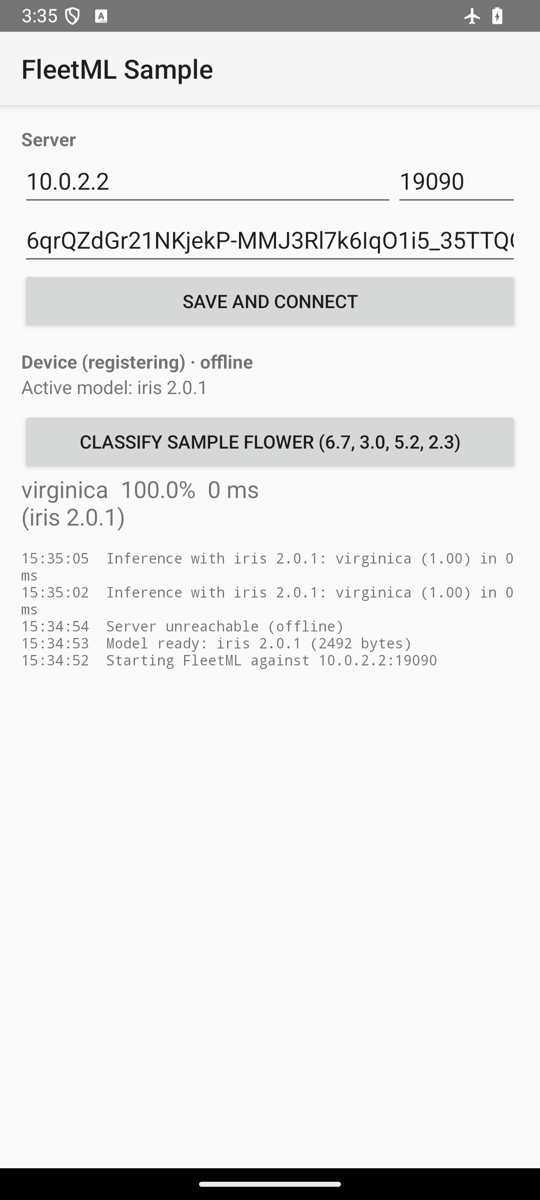
Offline. Models activated in an earlier run are delivered through
onModelReady (and FleetML.activeModels()) as soon as the SDK starts,
before the server is reached; until the server answers, the app keeps using
them and onConnectionStatusChanged reports reachability. On a phone over
Wi-Fi, turn on airplane mode, then force-stop and reopen the app. On a phone
over USB, airplane mode does not cut the adb reverse forwards, so remove them
instead:
adb reverse --remove-all
adb shell am force-stop <application ID>
adb shell am start -n <application ID>/.MainActivity
onModelReady fires for the cached model at once and
onConnectionStatusChanged(false) follows. Logcat shows each failed heartbeat
on one line, over USB without the forwards:
W FleetML : Heartbeat failed: UNAVAILABLE: connect failed: ECONNREFUSED (Connection refused)
and in airplane mode:
W FleetML : Heartbeat failed: UNAVAILABLE: connect failed: ENETUNREACH (Network is unreachable)
With events waiting to be sent (an inference reported while offline, say),
each flush adds
W FleetML : Telemetry flush failed, 1 events kept: UNAVAILABLE: ...; with
an empty queue there is no such line. Set the three forwards again (or turn
airplane mode off): a later heartbeat reconnects, onConnectionStatusChanged(true)
fires and what is queued is sent (Telemetry flushed: 1 sent, 1 accepted, at
debug level: with adb logcat FleetML:I *:S the reconnect itself shows as
the next line that is not a failure, such as a download).
The SDK retries every 30 seconds until the server answers, and after airplane
mode the network itself takes a moment to come back, so expect the reconnect
within a minute or two: it took 28 seconds after the forwards were set again,
and 24 to 50 seconds after airplane mode was turned off, on an API 35
emulator, and 70 seconds on a phone, whose Wi-Fi takes longer to come back.
On the emulator the same test runs with airplane mode, which also cuts
10.0.2.2, on API 30 and later (on API 26 to 29, the quick settings tile):
adb shell cmd connectivity airplane-mode enable
adb shell am force-stop <application ID>
adb shell am start -n <application ID>/.MainActivity
and adb shell cmd connectivity airplane-mode disable brings the network
back.
Production checklist
- TLS. FleetML does not terminate TLS: put a proxy in front that does,
for gRPC (the gRPC port; gRPC needs HTTP/2 end to end) and for the object
store's downloads (the model files' port, or your S3 endpoint), see the
trust boundaries and, on Kubernetes, the
Helm chart. The app then uses
serverPort = 443anduseTls = true, the release values in Configure and start. - The download address. The server's
S3_PUBLIC_ENDPOINTmust be an address phones reach from the public internet, since every download URL is signed for it (CONFIG.md); with an object store behind the same proxy, its public host name on 443. - Backups. Point the app at the SDK's backup rules, as the skeleton's manifest does, or add the SDK's exclude line to the app's own rules (Enrollment and identity): a restored copy of the encrypted registration cannot be read on the new phone, which makes the SDK register again.
- Release builds carry no network security config: the cleartext config
lives in
src/debugonly, so a release build keeps Android's default and talks TLS only. - The enrollment key is not a secret in the way a password is (it is in
every installed APK), but it lets a device join the project: keep it out of
the source (a Gradle property or the CI's secret store), give each app or
release channel its own (
fleetml enrollment-key create --name ...), and revoke one that leaks: devices that already registered keep their device tokens, and only new registrations need the new key. - Foreground only. The SDK's heartbeat and telemetry timers run only
while the app is in the foreground. In the background a WorkManager job
checks in every
background_heartbeat_interval_seconds(an hour by default, at least 15 minutes), which survives reboots, though some makers' battery optimisations delay or skip background jobs for apps the user has not opened in a while; this is not tested per maker here. A locked phone counts as the background, and recent Android versions freeze the process, so expect the fleet's state (last seen, loaded versions, telemetry) to lag for users who seldom open the app.
Emulator
The emulator reaches the machine it runs on as 10.0.2.2, so the debug build
gets that host: -PfleetmlDebugHost=10.0.2.2. That covers gRPC.
Model files are another matter: the server hands each one out as a URL for
localhost on the model files' port (the quickstart's S3_PUBLIC_ENDPOINT), and localhost
inside the emulator is the emulator itself. Forward that one port once per
emulator start, before the app's first download, with ANDROID_SERIAL set to
the emulator (the name adb devices lists) when a phone is attached too:
export ANDROID_SERIAL=emulator-5554
adb reverse tcp:${FLEETML_S3_PUBLIC_PORT:-19100} tcp:${FLEETML_S3_PUBLIC_PORT:-19100}
ORG_GRADLE_PROJECT_fleetmlEnrollmentKey=$FLEETML_ENROLLMENT_KEY ./gradlew :app:installDebug -PfleetmlDebugHost=10.0.2.2 -PfleetmlDebugPort=${FLEETML_GRPC_PORT:-19090}
adb shell am start -n <application ID>/.MainActivity
Without the forward the app registers and then logs
Download of <variant ID> interrupted at 0 bytes: Failed to connect to localhost/127.0.0.1:<model files port>
on every heartbeat. With the server's S3_PUBLIC_ENDPOINT on your LAN address
(Over Wi-Fi), downloads go there instead, and the emulator's
debug network security config must allow that address too
(CLEARTEXT communication to <LAN IP> not permitted otherwise). With all three forwards from Over USB, the
emulator runs the phone's USB path as it is, with the default localhost.
adb shell pm clear <application ID> starts the app from nothing: no
registration, no cached model. Airplane mode is in Offline and update
tests.
Emulator runbook
This is how the SDK and the sample app are verified, against
the server from the quickstart (the production
compose stack, with the admin key in $FLEETML_ADMIN_KEY) and the fleetml
CLI. It runs from the root of a clone, since the sample app and models are in
the repository. Contributors on the dev stack (make dev) use the key from
.env and the dev stack's object store port, 19000, instead of the model
files' port.
-
Start the server with the quickstart's "Run FleetML" block (or
source ~/.fleetml.envin a new shell). -
Start an emulator (API 26 or later), from Android Studio's Device Manager or
emulator -avd <name>, pin to it and forward the object store's port:export ANDROID_SERIAL=emulator-5554 adb reverse tcp:${FLEETML_S3_PUBLIC_PORT:-19100} tcp:${FLEETML_S3_PUBLIC_PORT:-19100}The sample app connects to
10.0.2.2on the gRPC port by default. -
Publish the sample models, create an enrollment key and deploy 1.0.0 to the sample app's label (
app=sample), as in Publish and deploy with these names:export FLEETML_SERVER=http://localhost:${FLEETML_REST_PORT:-18080} FLEETML_API_KEY=$FLEETML_ADMIN_KEY P=$(fleetml project create --name android-demo -o json | jq -r .id) fleetml push models/iris/iris_v1.tflite --project $P --model iris --version 1.0.0 fleetml push models/iris/iris_v2.tflite --project $P --model iris --version 2.0.0 M=$(fleetml model list --project $P -o json | jq -r '.[] | select(.name == "iris") | .id') V1=$(fleetml ver list --model $M -o json | jq -r '.[] | select(.version == "1.0.0") | .id') V2=$(fleetml ver list --model $M -o json | jq -r '.[] | select(.version == "2.0.0") | .id') export FLEETML_ENROLLMENT_KEY=$(fleetml enrollment-key create --project $P --name emulator -o json | jq -r .key) D=$(fleetml deploy create --project $P --version $V1 --target '{"app":"sample"}' -o json | jq -r .id) fleetml deploy start $D -
Build and install the sample app with the key (it connects by itself on its first start; or type the settings on its config screen and tap Save and connect), and open it. A fresh clone has no
android/local.properties, so Gradle on the command line finds the Android SDK throughANDROID_HOME($HOME/Library/Android/sdkon macOS,$HOME/Android/Sdkon Linux, where Android Studio puts it), and it needs JDK 17 (From a clone); Android Studio writeslocal.propertieswhen it opens the project.export ANDROID_HOME=$HOME/Library/Android/sdk JAVA_HOME=/opt/homebrew/opt/openjdk@17 (cd android && ORG_GRADLE_PROJECT_fleetmlEnrollmentKey=$FLEETML_ENROLLMENT_KEY ./gradlew :sample-app:installDebug -PfleetmlDebugPort=${FLEETML_GRPC_PORT:-19090} < /dev/null) adb shell am start -n com.fleetml.sample/.MainActivityA build with a key it has not used before connects with that key, also where the sample app ran before; a reinstall of the same build keeps what its config screen saved, and
adb shell pm clear com.fleetml.samplestarts it from nothing (the device's token goes too, so a key of another project is then refused: seethis device is already registeredbelow).The app registers, downloads iris 1.0.0, validates it and shows Active model: iris 1.0.0; logcat shows the lines in Over USB. Classify sample flower runs it and reports inference telemetry.
fleetml deploy create --project $P --version $V2 --target '{"app":"sample"}'anddeploy startupdate the app to 2.0.0 on its next heartbeat. -
Offline start: airplane mode as in Offline and update tests, force-stop and reopen the app. The cached model is active immediately and inference works; events are queued and sent once airplane mode is off.
The sample app runs on a phone the same way: over USB, the three forwards and
-PfleetmlDebugHost=localhost on the Gradle line (the config screen then
shows localhost in place of 10.0.2.2); over Wi-Fi,
-PfleetmlDebugHost=<LAN IP> (Over Wi-Fi). With
S3_PUBLIC_ENDPOINT on the LAN address, its downloads go there on the
emulator and over USB too, so build those with -PfleetmlDebugHost=<LAN IP>
as well and type the host on the screen. A build with another host, port
or enrollment key replaces the settings the app saved, and the SDK
registers again with it (with the device's token, so the server moves the
device to the new key's project); a revoked key shows in logcat as
Registration failed: UNAUTHENTICATED: unauthenticated: invalid or revoked enrollment key.
this device is already registered in logcat
(Registration failed: UNAUTHENTICATED: ... this device is already registered; re-register with its current device token or an enrollment key for its project):
the phone or emulator was registered in another project before and the app
lost its device token since (an uninstall, adb shell pm clear), so it
comes back with only a key of another project, which the server refuses: a
key alone must not take a known device over. Remove the old device record
with the admin key, then start the app again. Its ID is in
fleetml device list (without --project it lists the devices of every
project: the row with your phone's Chipset, one record per FleetML app on
the phone; the dashboard's Devices page shows it too):
curl -fsS -X DELETE -H "Authorization: Bearer $FLEETML_ADMIN_KEY" "localhost:${FLEETML_REST_PORT:-18080}/api/v1/devices/<device ID>" && echo removed
adb shell am start -S -n com.fleetml.sample/.MainActivity
You should see removed, and in logcat Registered as device with a new
ID. Building with the old project's key instead also works.
From Windows
The server runs in WSL 2 (On Windows); the
Android tools, Gradle and a second clone of the repository run on the Windows
side, in PowerShell, where Android Studio installs the tools (adb and the
emulator in %LOCALAPPDATA%\Android\Sdk; an adb inside Ubuntu sees
neither a phone nor the Windows emulator, and Gradle is slow on a
\\wsl.localhost path). This is the sample app on a phone over USB from
start to end, then over Wi-Fi, then on the emulator; your own app is the same
with :app:installDebug in its project. CI builds the sample app with
gradlew.bat on windows-latest; the phone steps are run by hand. This is
for x64 Windows: on Windows on Arm the Gradle build is untested (there is no
windows-aarch_64 build of the protobuf compiler it fetches), as the
quickstart says of Docker there.
Once, before you start:
- Android Studio, for the SDK and
adb. - JDK 17, for Gradle 8.7:
winget install --id EclipseAdoptium.Temurin.17.JDK -e(a per-machine install: Windows asks for an administrator). Android Studio's bundled JDK (the JetBrains Runtime in itsjbrfolder) is Java 25 in Android Studio 2026.1, and Gradle 8.7 does not run on it:gradlew.batstops at once withWhat went wrong: 25.0.2. CI builds the sample app with Temurin 17, the same JDK. - Git for Windows:
winget install --id Git.Git -e, or Android Studio's File, New, Project from Version Control. After a winget install, open a new PowerShell window, so thatgit(and the JDK above) are on itsPATH. - The
fleetmlCLI for Windows, from Get the CLI. - The phone: developer options with USB debugging on, and its maker's USB
driver on Windows (Google's for Pixel phones, from the SDK Manager) so that
adb deviceslists it. Keep it unlocked with the app in front while you test (developer options, Stay awake while charging): a locked phone stops the SDK (Battery and data).
In PowerShell, a clone, then the publish and deploy steps of Publish and
deploy with ConvertFrom-Json in place of
jq, so the enrollment key stays in this window. The admin key comes from
the stack's ~/.fleetml.env in Ubuntu, and deploy create without
--target targets every device in the project, so no JSON has to be quoted:
git clone https://github.com/fleetml/fleetml.git $HOME\fleetml
cd $HOME\fleetml
$env:FLEETML_SERVER = wsl -d Ubuntu --exec bash -c '. ~/.fleetml.env && printf http://localhost:%s ${FLEETML_REST_PORT:-18080}'
$env:FLEETML_API_KEY = wsl -d Ubuntu --exec bash -c '. ~/.fleetml.env && printf %s $FLEETML_ADMIN_KEY'
$P = (fleetml project create --name "android-windows-$(Get-Date -Format yyyyMMdd-HHmmss)" -o json | ConvertFrom-Json).id
fleetml push models\iris\iris_v1.tflite --project $P --model iris --version 1.0.0
$M = (fleetml model list --project $P -o json | ConvertFrom-Json)[0].id
$V1 = (fleetml ver list --model $M -o json | ConvertFrom-Json)[0].id
$EK = (fleetml enrollment-key create --project $P --name phone -o json | ConvertFrom-Json).key
$D1 = (fleetml deploy create --project $P --version $V1 -o json | ConvertFrom-Json).id
fleetml deploy start $D1
The push prints ✓ Pushed models\iris\iris_v1.tflite → iris v1.0.0 (INT8)
and the last line ✓ Deployment start → COMPLETE. Then the phone, with its
serial from adb devices, the three port forwards that make the machine
localhost for the phone, and the sample app built with that host and the
key:
$env:ANDROID_HOME = "$env:LOCALAPPDATA\Android\Sdk"
$env:JAVA_HOME = (Get-ChildItem "$env:ProgramFiles\Eclipse Adoptium" -Directory -Filter 'jdk-17*')[0].FullName
& "$env:JAVA_HOME\bin\java" -version
$env:Path += ";$env:ANDROID_HOME\platform-tools"
adb devices
$env:ANDROID_SERIAL = '<the phone''s serial>'
$rest, $grpc, $s3 = (wsl -d Ubuntu --exec bash -c '. ~/.fleetml.env && echo ${FLEETML_REST_PORT:-18080} ${FLEETML_GRPC_PORT:-19090} ${FLEETML_S3_PUBLIC_PORT:-19100}').Split(' ')
adb reverse tcp:$rest tcp:$rest
adb reverse tcp:$grpc tcp:$grpc
adb reverse tcp:$s3 tcp:$s3
cd android
$env:ORG_GRADLE_PROJECT_fleetmlEnrollmentKey = $EK
.\gradlew.bat :sample-app:installDebug "-PfleetmlDebugHost=localhost" "-PfleetmlDebugPort=$grpc"
adb shell am start -n com.fleetml.sample/.MainActivity
adb logcat -s FleetML
The project name carries the time, since names are unique on a server: a
second run of the block makes a new project instead of stopping with
project already exists and an empty $P. java -version prints
openjdk version "17.0... (Temurin). The -P
arguments are in quotes because PowerShell splits an unquoted
-Pname=192.168.1.23 at the first dot and Gradle then sees -Pname=192,
and does not expand a $variable in an unquoted -P argument either. The
enrollment key goes to Gradle as $env:ORG_GRADLE_PROJECT_fleetmlEnrollmentKey,
which Gradle reads as the property and which keeps it off the build's
command line, where Task Manager and Get-CimInstance Win32_Process show
it to every process of the user. The $rest, $grpc, $s3 line reads the
stack's three ports from the Ubuntu shell's ~/.fleetml.env, so a port
moved out of a reserved range (Troubleshooting,
Other ports) needs no change here, in the
firewall rule below or on the emulator. The reverses reach the ports Docker
Desktop publishes on Windows. The app connects by itself on its first
start (a build with a key does), with host localhost, the gRPC port and
the key on its config screen. (Without -PfleetmlDebugHost the screen shows 10.0.2.2,
which is the emulator's address for the machine and does not work on a
phone.) Logcat then shows the lines of Over USB, among them
Registered as device <device ID>, Model iris 1.0.0 passed validation
and Model iris 1.0.0 is active, and the app's screen Active model: iris 1.0.0 (its log line reads Model ready: iris 1.0.0).
adb logcat runs until Ctrl+C: stop it (or open a second window) before
the next steps.
A rebuild with another key connects with it, also on a phone where the
sample app ran before; a reinstall of the same build keeps what its config
screen saved. adb shell pm clear com.fleetml.sample resets the app (it
deletes the app's data). A stale key shows as
Registration failed: UNAUTHENTICATED: unauthenticated: invalid or revoked enrollment key,
and a stale host as
Registration failed: UNAVAILABLE: connect failed: ECONNREFUSED (Connection refused).
Over Wi-Fi, the phone and the Windows machine on the same network:
- The Windows machine's LAN address is the IPv4 address
ipconfigprints for the Wi-Fi or Ethernet adapter (not WSL'sip addr, an internal one). -
In the Ubuntu shell, in the stack's clone, save it as the address devices download from and restart the server with it:
. ~/.fleetml.env && sed -i "s/S3_PUBLIC_ENDPOINT=[^ ]*/S3_PUBLIC_ENDPOINT=<LAN IP>:${FLEETML_S3_PUBLIC_PORT:-19100}/" ~/.fleetml.env source ~/.fleetml.env docker compose -f deploy/docker-compose.prod.yml up -d -
In an administrator PowerShell, mark the Wi-Fi network private (Settings, Network and internet, Wi-Fi, the network, Private network; or
Set-NetConnectionProfile -InterfaceAlias Wi-Fi -NetworkCategory Private;Get-NetConnectionProfilelists the interface aliases, if yours is notWi-Fi) and let the gRPC and model files' ports in on private networks only, read from the Ubuntu shell's~/.fleetml.env:$grpc, $s3 = (wsl -d Ubuntu --exec bash -c '. ~/.fleetml.env && echo ${FLEETML_GRPC_PORT:-19090} ${FLEETML_S3_PUBLIC_PORT:-19100}').Split(' ') New-NetFirewallRule -DisplayName FleetML -Direction Inbound -Protocol TCP -LocalPort $grpc,$s3 -Action Allow -Profile PrivateRemove-NetFirewallRule -DisplayName FleetMLremoves it when you are done. If the phone still cannot connect, a block rule may win over it: cancelling Docker Desktop's firewall prompt once leaves one, andGet-NetFirewallRule -Action Block -Enabled True | Where-Object DisplayName -like '*Docker*'lists it. -
Back in the first PowerShell, without the cable's forwards, the app built with the LAN address (the screen then shows it, and its debug build may talk plain HTTP to it):
adb reverse --remove-all
adb shell pm clear com.fleetml.sample
.\gradlew.bat :sample-app:installDebug "-PfleetmlDebugHost=<LAN IP>" "-PfleetmlDebugPort=$grpc"
adb shell am start -n com.fleetml.sample/.MainActivity
The app connects by itself; logcat shows the same lines. With
S3_PUBLIC_ENDPOINTon the LAN address, downloads go there also over USB and on the emulator, so those need-PfleetmlDebugHost=<LAN IP>too (and the host typed on the screen:localhostover USB,10.0.2.2on the emulator), or the endpoint back tolocalhost.
On the emulator: the same PowerShell lines with
$env:ANDROID_SERIAL = 'emulator-5554', only adb reverse tcp:$s3 tcp:$s3
(the emulator reaches the machine's gRPC port at 10.0.2.2 by itself), and
.\gradlew.bat :sample-app:installDebug "-PfleetmlDebugPort=$grpc"
without -PfleetmlDebugHost; the screen then shows 10.0.2.2. Android Studio
instead of PowerShell: ADVANCED.md.
When you are done: fleetml project delete $P (it asks for no
confirmation and cannot be undone), adb uninstall com.fleetml.sample,
adb reverse --remove-all, Remove-NetFirewallRule -DisplayName FleetML in
an administrator PowerShell, and in the Ubuntu shell the download address
back to localhost
(the block there restarts the server).
Telemetry
val model = FleetML.activeModel("iris")!!
FleetML.getTelemetryReporter().reportInference(model, latencyMs = 3, confidence = 0.97f, predictionLabel = "virginica")
// with input values, for feature-level drift (only features configured on the server are kept):
FleetML.getTelemetryReporter().reportInference(model, latencyMs = 3, features = mapOf("petal_length" to floatArrayOf(5.1f)))
On the server, fleetml telemetry events --model-version <version ID> lists
the events of a version (--device <device ID> narrows them to one device).
reportInference(modelVersionId, latencyMs, ...) reports for a version ID
instead of an ActiveModel (for a model the app loaded itself), and
reportModelStatus(modelVersionId, type, ...) reports a lifecycle event
(MODEL_LOAD, MODEL_LOAD_FAILED, OOM, ERROR) of the app's own.
Events go into a persistent queue (bounded to 10,000; oldest dropped first): they survive process death and are kept while offline or before registration. They are sent in batches every flush interval, with exponential backoff (5 s up to 5 min) after a failure and an immediate flush when the connection returns. For a model in an A/B experiment the event carries the device's arm ID automatically, so results are attributed per arm. Feature values are binned on the device with the edges from the server (feature-level drift); only the counts are sent.
Enrollment and identity
The first registration needs a valid enrollment key; the device is enrolled into that key's project and receives a device token (30 days by default). The device ID is stable per app and device: the fingerprint is a SHA-256 of the app's package name and hardware properties (no ANDROID_ID, IMEI or other resettable identifiers), so two FleetML apps on one phone are separate devices. After that the SDK:
- re-registers only when it is new or its labels or SDK version changed;
- refreshes the token before it expires (6 days before, or at half its lifetime
for short-lived tokens) with the
RefreshTokenRPC; - re-registers with the enrollment key if the server rejects the token
(revoked with
POST /api/v1/devices/{id}/revoke, or expired). - re-registers with the enrollment key if its stored registration cannot be
read. The registration is encrypted with an Android Keystore key, which a
backup, a phone-to-phone transfer or a copied app directory does not carry,
so a restored copy cannot be decrypted. The SDK then logs
W FleetML : Stored registration unreadable (AEADBadTagException); deleted it, registering again with the enrollment key, deletes the file and registers again; the device ID comes back the same. To keep the file out of backups in the first place, point your app at the SDK's rules (android:fullBackupContent="@xml/fleetml_backup_rules"andandroid:dataExtractionRules="@xml/fleetml_data_extraction_rules"on<application>), or, if your app has its own rules files (Android Studio's template creates two), add the SDK's<exclude domain="sharedpref" path="fleetml_credentials.xml" />line to them: infullBackupContent's file inside<full-backup-content>, and indataExtractionRules's file inside both<cloud-backup>and<device-transfer>, as the SDK's ownfleetml_data_extraction_rules.xmlhas it. The SDK does not set these attributes itself: a library that did would break the build of every app with its own rules.
Models: download, verify, validate, activate
For each assignment in a heartbeat the SDK:
- Checks the signature of the assignment with the project's signing
keys (sent with registration and every heartbeat): an artifact whose
signature does not verify is not downloaded, the current model stays, and
SIGNATURE_INVALIDis reported (artifact signing). - Downloads the model from the presigned URL, streaming to a
.partfile. An interrupted download resumes with an HTTP Range request. When the server offers a delta from the version the device has, only the delta is downloaded and applied (delta updates). - Verifies the sha256 before moving the file into place.
- Validates it with a
ModelValidator. - Activates it only if validation passed: the model becomes active, the
previously active version becomes last-known-good, the device reports the
new version as loaded and
onModelReady(model)is called.
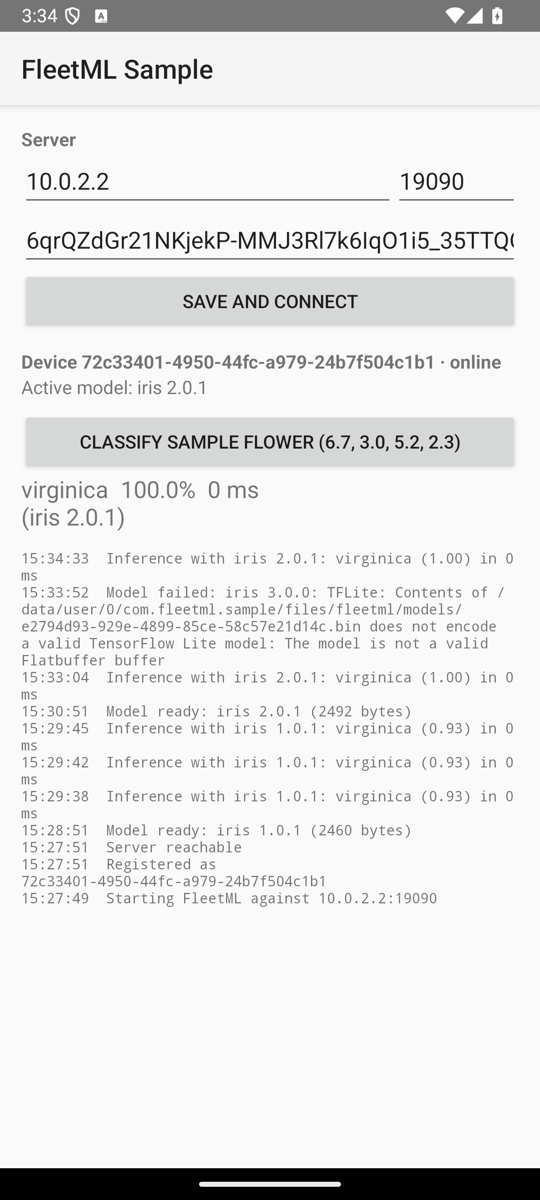
If validation fails, the active (last-known-good) model stays in place, the SDK
reports a MODEL_LOAD_FAILED event with the error (so a canary's health gate
can roll the release back), calls onModelLoadFailed, and does not retry that
variant for an hour.
Validators
ModelValidators.default() (used unless you pass validator = ... to init):
- TFLite files (identifier
TFL3): opens anInterpreterand runs one inference on zero inputs of the model's declared shapes, iforg.tensorflow:tensorflow-liteis in the app. - Other files: opens an ONNX Runtime session and runs one inference on zero
float inputs, if
com.microsoft.onnxruntime:onnxruntime-androidis in the app. - Otherwise the model is accepted (
NoOpModelValidator).
Write your own to check what matters to your app:
FleetML.init(this, config, callback, validator = ModelValidator { file, model ->
    val ok = runGoldenInput(file)   // e.g. a known input with a known answer
    if (ok) ValidationResult.Valid else ValidationResult.Invalid("golden input mismatch")
})
Which variant a device gets
The server picks one READY variant per assignment for each device, by runtime (TFLite on Android) and by the variant's requirements. Requirements default by quantization (for example FP32 needs a device score of 60 and 2 GB of RAM). Override them for small models in the version's metadata:
{"version": "1.0.0", "metadata": {"fleetml_requirements": {"min_ram_mb": 64, "min_score": 0}}}
POST /api/v1/intelligence/preview with a device_id and deployment_id
explains the choice for one device.
Battery and data
| In the foreground | In the background | |
|---|---|---|
| Heartbeat | every heartbeat_interval_seconds (server default 60 s) |
one per background check |
| Telemetry | batches of telemetry_batch_size (server default 100), every telemetry_flush_interval_seconds (30 s) and when a batch fills |
one flush when the app goes to the background, one per background check |
| Background check | not scheduled | a WorkManager job every background_heartbeat_interval_seconds (1 h, at least 15 min), only with a network connection |
| Model downloads | per download_policy |
per download_policy |
- Foreground only timers. The SDK follows the app's process lifecycle
(
ProcessLifecycleOwner): its timers stop when the app leaves the foreground and start again when it returns. Initialize FleetML inApplication.onCreate()so the background job finds it when WorkManager starts your app.FleetML.syncNow()runs one heartbeat and one telemetry flush on demand. - Downloads.
UNMETERED_OR_CHARGING(the default): an unmetered network (Wi-Fi, Ethernet), or any network while the device charges.UNMETERED_ONLYandANY_NETWORKare the alternatives. A waiting assignment is retried on the next heartbeat. Assignments of an urgent deployment, and every rollback, skip the battery and metered rules, but they still need a connection: with no network at all, every download waits, urgent ones included. - Telemetry is always batched; no event is sent on its own.
- The server sets all of these for every device with the
DEVICE_*variables (CONFIG.md);FleetMLConfigonly provides the values used before the first response.
For contributors
Instrumented test
LiveServerTest (in fleetml-sdk/src/androidTest) runs register → download →
validate → activate → inference telemetry against a running server and checks
through the REST API that the server stored the event. With the dev stack
(make dev) and an emulator running:
FLEETML_API_KEY=$(grep '^FLEETML_ADMIN_KEY=' .env | cut -d= -f2) ./scripts/android-e2e.sh
The script forwards the dev stack's object store port and the quickstart's model files' port, so it runs against the quickstart's
server too (FLEETML_API_KEY=$FLEETML_ADMIN_KEY). It needs ANDROID_HOME (or
local.properties) as in the runbook's step 4, and runs Gradle with JDK 17
whatever JAVA_HOME says: from JAVA_HOME_17 if it is set, otherwise from
/opt/homebrew/opt/openjdk@17. The test connects to 10.0.2.2 unless told
otherwise; on a phone with the reverses set, pass the host through Gradle's
environment:
env 'ORG_GRADLE_PROJECT_android.testInstrumentationRunnerArguments.host=localhost' FLEETML_API_KEY=$FLEETML_API_KEY ./scripts/android-e2e.sh
./scripts/signing-e2e.sh android runs SignatureLiveTest twice against
the same server: a model whose stored signature was overwritten is rejected,
and one signed with the previous key is accepted during the rotation's grace
period and rejected after it.
They need a device or emulator and a running server, so they are not part of
the hosted CI; the unit tests (./gradlew :fleetml-sdk:testDebugUnitTest
:sample-app:testDebugUnitTest) are. The test process has no activity, so the
SDK counts as being in the background and the test drives it with
FleetML.syncNow().
Battery and data on the emulator or a phone
With the sample app connected and showing its model, send it to the
background (its heartbeats stop), find its WorkManager job (a line like
JOB #u0aNNN/<id>) and run the job once, which is one background check with
one heartbeat:
adb shell input keyevent KEYCODE_HOME
adb shell dumpsys jobscheduler | grep "com.fleetml.sample/androidx.work"
adb shell cmd jobscheduler run -f com.fleetml.sample <id>
The job ends with one of three lines: Background sync: server reached,
Background sync: server unreachable (no answer: the network, the address
or the server is down), or Background sync: server reached, request refused (UNAUTHENTICATED: ...)
with the server's status and message, for example a revoked enrollment key
after the project was deleted.
Then put the device on battery and on a metered network:
adb shell dumpsys battery unplug && adb shell dumpsys battery set status 3
- On the emulator,
adb shell svc wifi disableleaves only mobile data, which is metered. - On a phone, keep Wi-Fi on and mark it metered with
adb shell cmd netpolicy set metered-network '"<SSID>"' true, where<SSID>is the network's name (the double quotes keep a name with spaces in one piece on the phone's shell). Turning Wi-Fi off does not work on a phone without a SIM: it is left with no network at all, and then every download waits, urgent ones included.
Deploy a new version without urgent, run the job again (the job ID changes
after each run): logcat shows Download of iris 2.0.0 waits for the download
policy. Deploy it with --urgent and run the job: the model is
activated. Restore with adb shell dumpsys battery reset, plus
adb shell svc wifi enable on the emulator or, on a phone,
adb shell cmd netpolicy set metered-network '"<SSID>"' undefined, which
returns the network to the system's own setting (false would mark it
unmetered instead).
Sample app
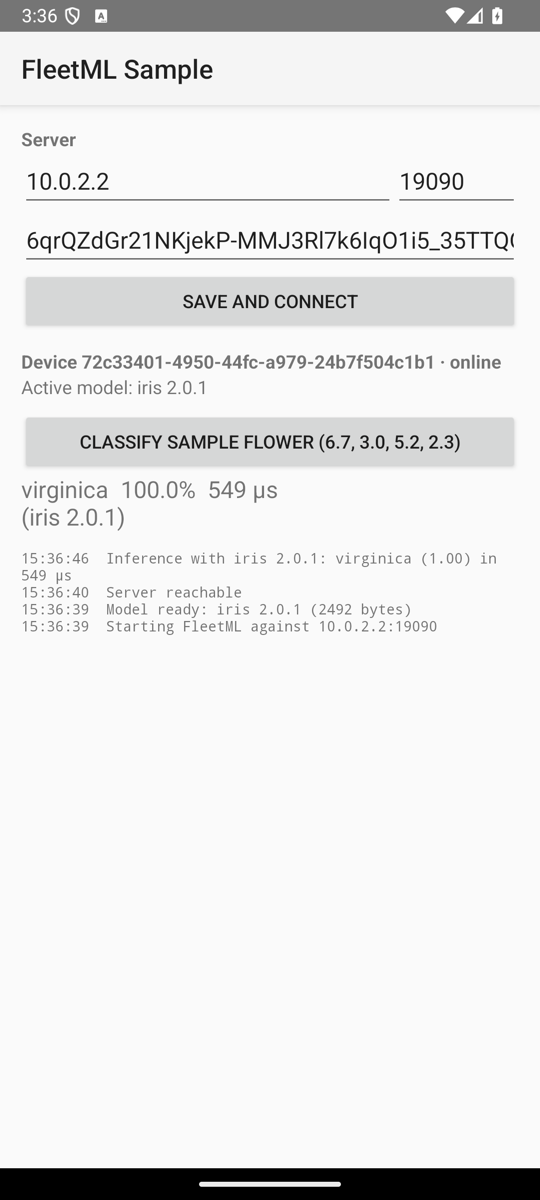
android/sample-app is the reference integration: a config screen (host, port,
enrollment key; the key shows in clear there, so crop it out of screenshots
you share), the SDK owned by the Application, a bundled Iris TFLite
model (models/iris, Apache-2.0) used until the server assigns one, and
inference telemetry. Cleartext traffic is allowed only in debug builds and only
to 10.0.2.2, localhost, 127.0.0.1 and the address given as
-PfleetmlDebugHost (or fleetml.debugHost in android/local.properties),
which the build writes into the debug network security config and the config
screen shows (Over Wi-Fi). The Emulator
runbook builds and runs it; From Windows
runs it on a phone from PowerShell.
Contact
- Anything about FleetML: [email protected].
- A security problem: [email protected], see SECURITY.md.
- Questions in public: GitHub Discussions.
- Bugs: GitHub Issues, with the FleetML version and the command or log line that shows the problem.